
In this article:
- Overview
- Requirements
- Install the Slack Integration
- Slack Notifications
- Commands & Shortcuts in Slack
- Troubleshooting
Overview
The Slack integration has two separate delivery paths:
-
Direct messages send survey invitations, reminders, feedback activity, and comments on recognition posts directly to individual employees through the Quantum Workplace app. These messages do not require a Slack channel.
-
Recognition posts are optional and allow recognition to be posted to a public Slack channel you designate.
Requirements
- Available to full admin users and/or your organization's Slack Workspace Owners
- The person completing the installation must have their own Quantum Workplace profile with admin permissions
Important: Slack notifications cannot be customized.
Install the Slack Integration
To install the Slack integration for Quantum Workplace:
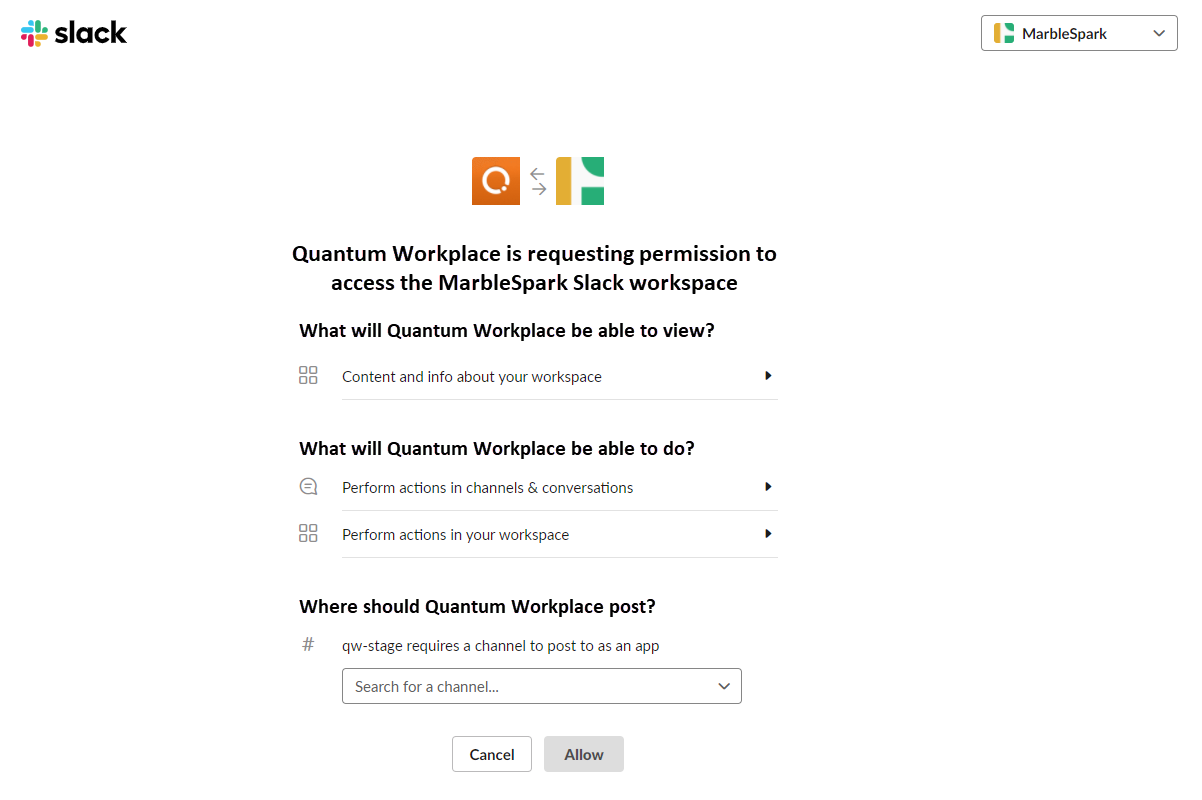
- Click and expand Global Settings in the left-hand navigation menu; click Integrations
- Click Slack; click Add to Slack
- Sign in to your Slack Workspace
- Confirm the permissions requested by Quantum Workplace
- Specify a Slack channel for Quantum Workplace Recognition to appear automatically
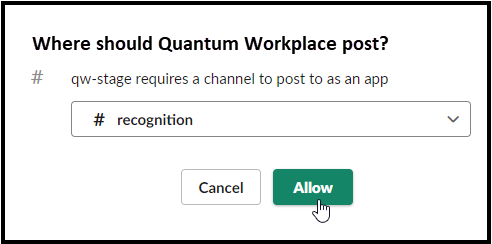
- Leave this field blank if you do not want Recognition to be posted in Slack
- Click Allow
To confirm delivery is working, launch a small real cycle. The usual approach is a test feedback cycle with yourself as the recipient and one provider. Confirm the direct message arrives to ensure the integration is active.
Slack Notifications
Once the Slack integration is established, any notification sent in Quantum Workplace will also be sent as a Slack notification, i.e. survey invitations and reminders, comments on a Recognition post, etc.
- Notification content cannot be customized. Slack notification wording is set by Quantum Workplace and cannot be edited to match your organization's internal communications.
- Each employee chooses their own notification channel. Employees select where they receive notifications in their Account Settings. Slack appears as an option only after the employee has been successfully matched during user sync.
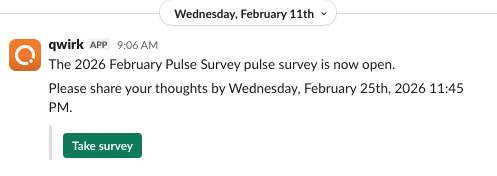
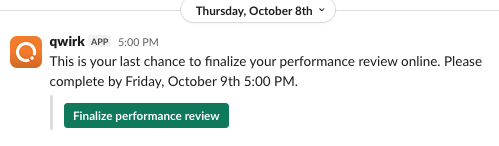
See notification examples below:
Employees receive this notification when surveys are launched:
Employees receive this notification as a reminder to finalize their Performance Reviews:
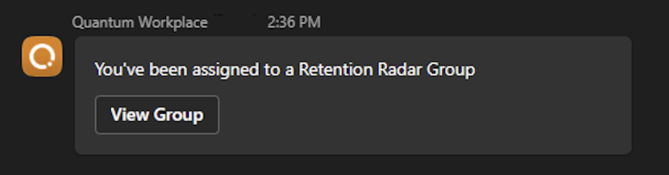
Employees receive this notification when added as a Group Owner to a Retention Radar Group (shown in dark mode):
Commands & Shortcuts in Slack
Run these in a direct message with the Quantum Workplace app, not in a channel. Commands typed into the recognition channel will not work.
Commands are only visible to you.
- /qwirk help: Enter to see a list of all possible commands
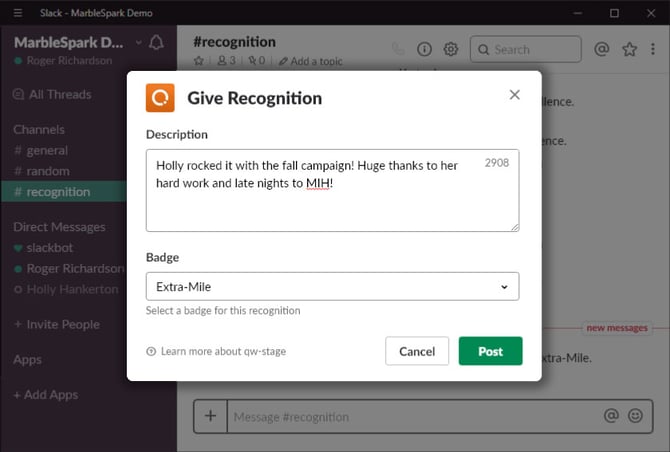
- /qwirk recognize @[employee]: Enter to open a modal to enter context and select a badge for the Recognition
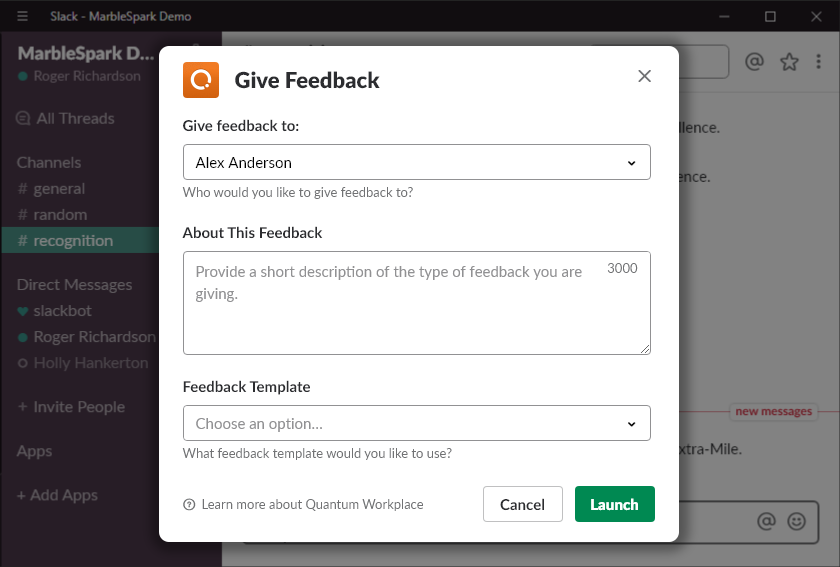
- /qwirk givefeedback @[employee]: Enter to open a modal to enter feedback context and select the Feedback template to provide Feedback
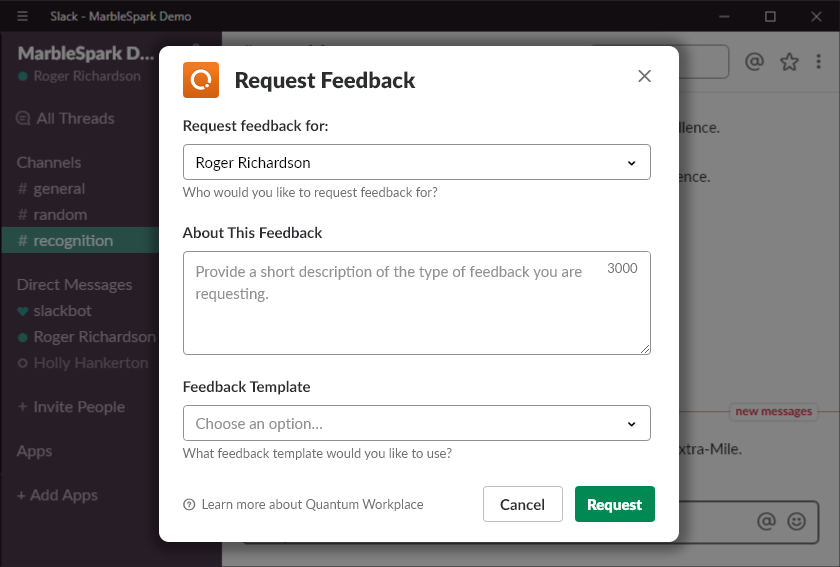
- /qwirk requestfeedback: Enter to request feedback for yourself or a direct report using the selected Feedback template
- /qwirk privatenote @[employee]: Enter to create a private note for the tagged employee, learn more about Private Notes
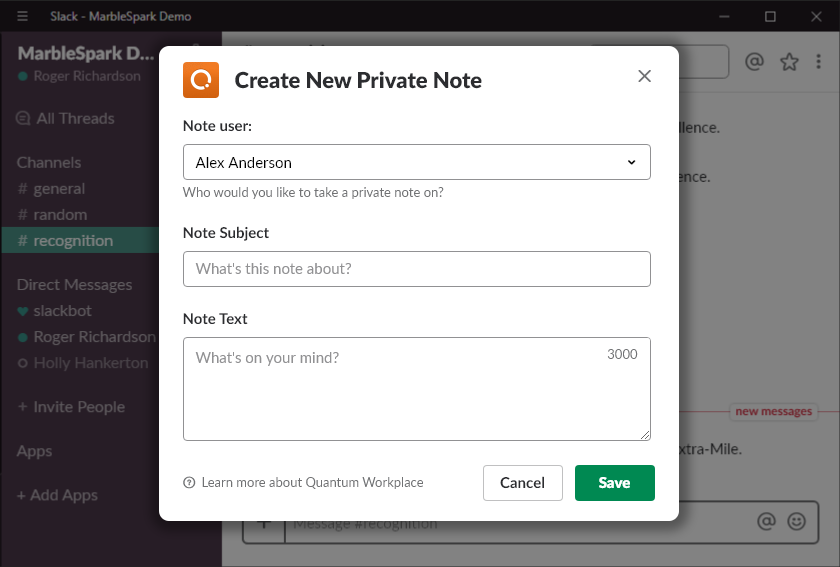
Publish & Manage Recognition Posts in Slack
With an active Slack integration, you can specify a Slack channel to publish all Recognition posts for your organization.
A separate #recognition channel is generally recommended, but any channel can be selected to post all Recognition.
To manage the public channel for Recognition posts:
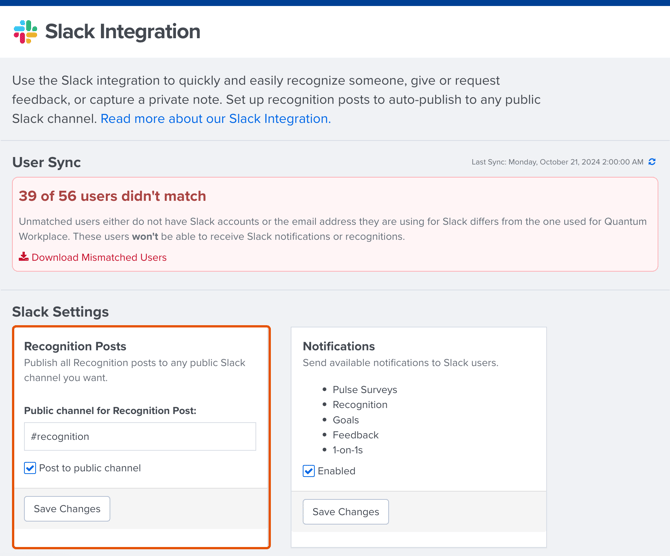
- Click and expand Global Settings; click Integrations
- Click Slack
- Enter the public Slack channel to host all Quantum Workplace Recognition posts
- Toggle if the Slack channel is public
- Click Save Changes
Admins can turn channel posting off. Clear the Post to Public Channel option to stop recognition posts. This affects recognition posts only. Direct message notifications, including survey invitations, continue as normal.
Troubleshooting
Troubleshooting tips for the Slack integration:
I Can't Install the Quantum Workplace App in Slack
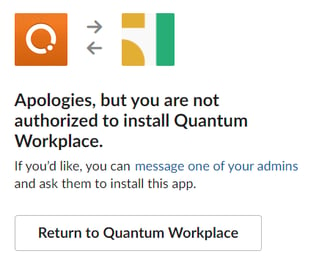
It's likely that your Slack Workspace Owners have restrictions around Slack apps and permissions.
If this is the case, you will see the following image:
Troubleshooting tips:
- Make a Slack Workspace Owner an admin in Quantum Workplace and request that they install the Quantum Workplace app
- To identify Slack Workspace admins, visit:
https://[Your Organization].slack.com/account/workspace-settings#admins
- To identify Slack Workspace admins, visit:
- Request to be made a Slack Workspace Owner
- Request the Slack Workspace Owner to relax app installation restrictions, learn more
The Quantum Workplace App Doesn't Work for an Employee
If the Slack integration is installed but a small number of employees can't use the integration, it's likely that their email addresses in Quantum Workplace and Slack do not match.
The Slack integration requires an exact email address match between Quantum Workplace and Slack to be used correctly.
Importantly, employees with no Slack account, like deskless staff, will always appear in the warning and can be ignored.
To identify mismatched users:
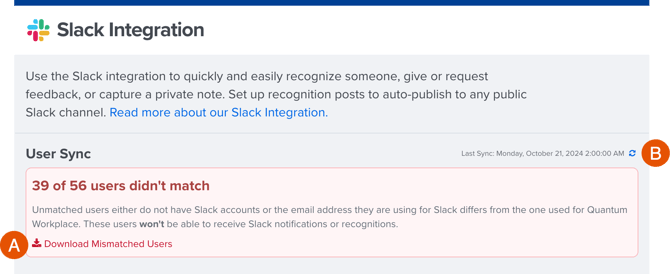
- Click and expand Global Settings; click Integrations
- Click Slack
- Click Download Mismatched Users (Figure A)
- The XLS file lists employees with mismatched email addresses between Quantum Workplace and Slack
- Compare the file to your Slack user list
- Update and correct the listed users' email address fields in Slack
- Return to Quantum Workplace; click the refresh icon to resync the integration (Figure B)
The Slack Bot Name Appears Incorrect
If the Quantum Workplace Slack app is installed but the bot name displays incorrectly in Slack, a Slack Workspace Admin can manually update the bot name.
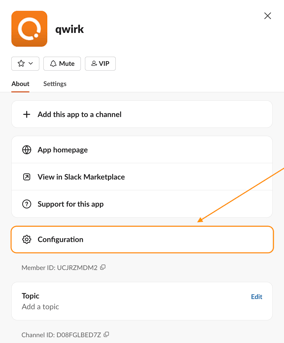
To update the bot name:
- Click the bot in Slack
- Click About
- Click Configuration
- Click Edit Bot User
- Update the bot name to Quantum Workplace
- Save your changes
One HR platform for connected talent insights. See how Quantum Workplace brings your data together across 1-on-1s, talent reviews, performance reviews, and more—so you can spot trends, act fast, and make more informed people decisions. Explore the interactive product tour or request a personalized demo with your Customer Success Manager.