
Last Updated: June 16, 2026
In this article:
Note: As Assembly features are being incorporated into Quantum Workplace, some users may see a slightly different experience than what is described in this article. The content below reflects the Quantum Workplace Rewards & Recognition platform experience.
Overview
Awards let you give special recognition to employees. Admins create and manage awards; designated givers award points; optional approvers review before awarding.
Requirements
- Only admins can create and manage awards
- Admins determine who can give and approve each award
- Everyone is eligible to receive awards
Creating an Award
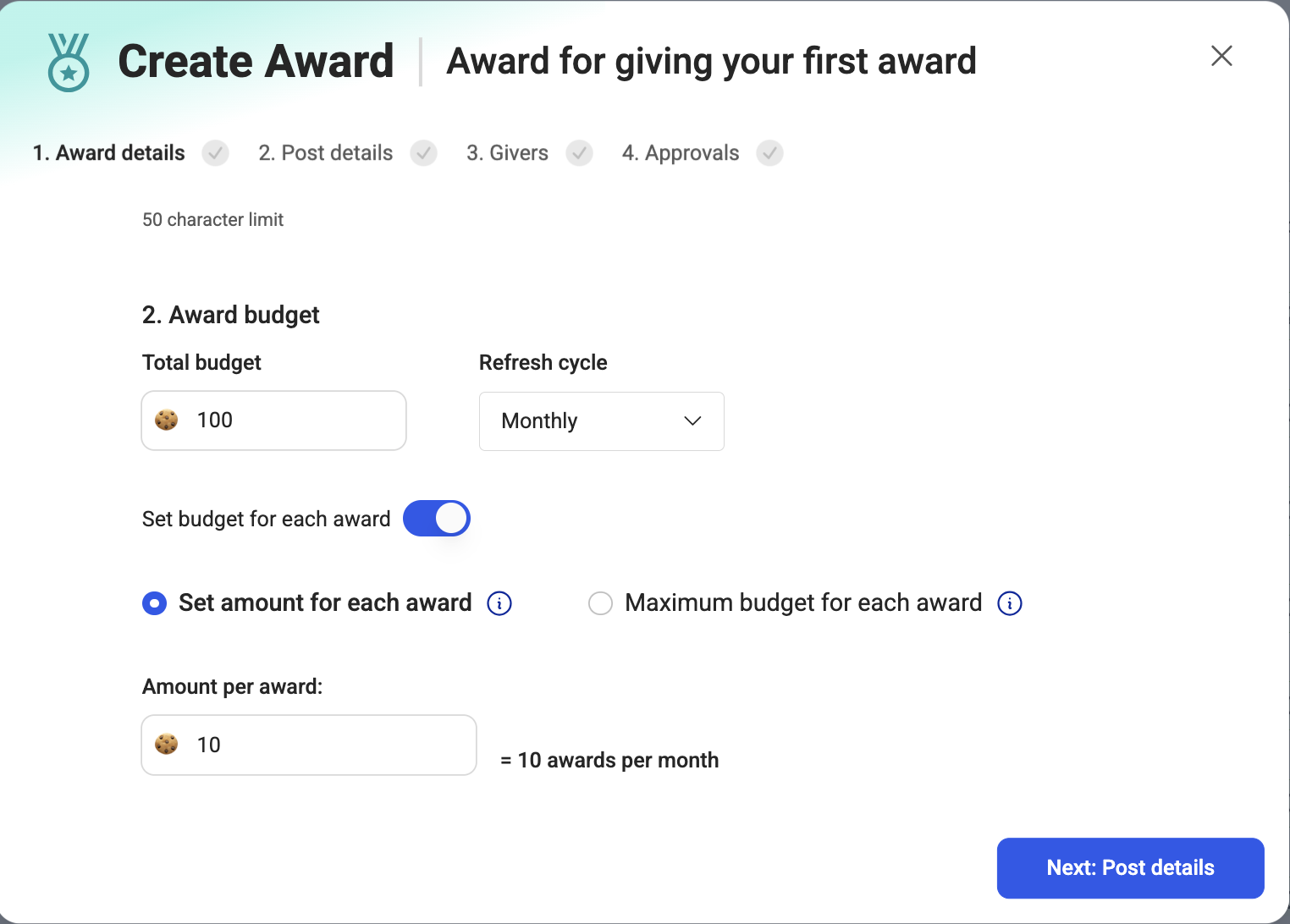
Award Details - Name and Budget
- Go to your admin page
- Select Recognition > Awards
- Click 'Create award' or 'Edit' on a pre-existing award
- Name your award
- Set the total budget and refresh cycle (weekly, monthly, quarterly, yearly)
- Check 'Give swag points' if this award gives swag points instead of regular points
- Set budget to 0 if you don't want to give points
- Enable 'Set budget for each award' if you want a fixed point amount per recipient or a maximum limit
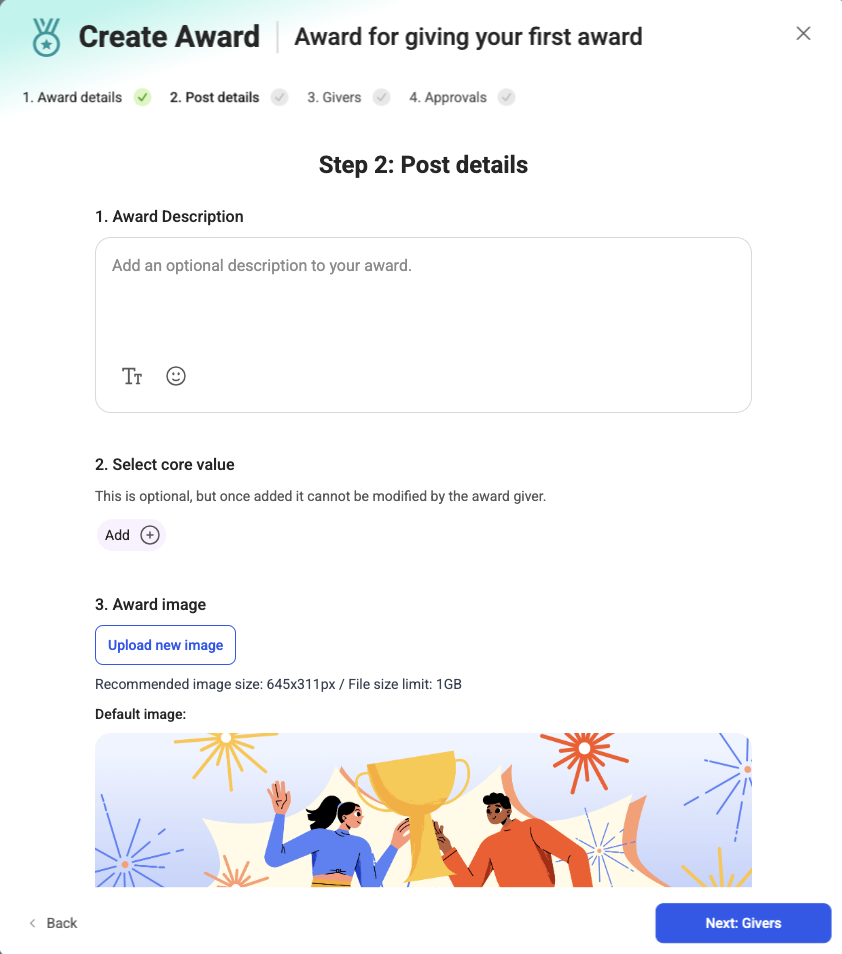
Post Details
- Add an optional description explaining the award
- Choose a core value to lock in (optional)
- Upload a custom image or use the default
- Click 'Next'
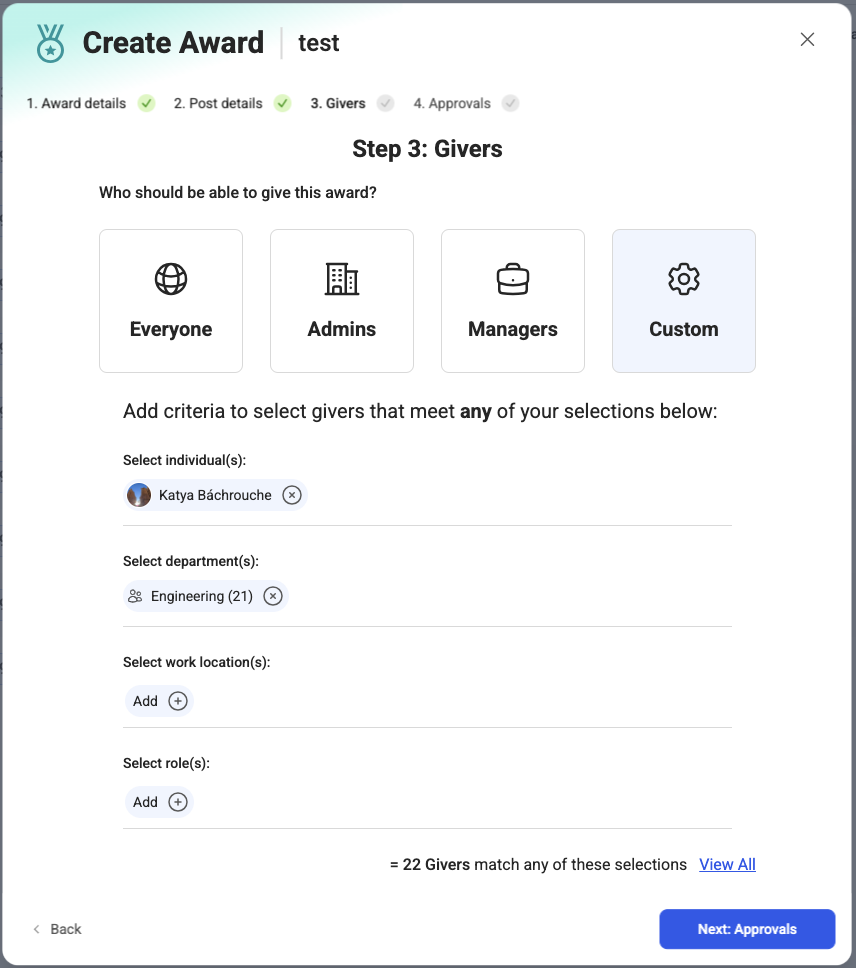
Select Givers
Designate who can give this award:
- Everyone, Admins, Managers, or Custom (specific people/groups/departments/locations)
- Click 'Next'
Select Approvers
- Auto-approve: Award posts and points are given immediately
- Manual approval: Add up to 4 approval levels
- Select individual people and/or groups
- First level can use 'Manager of recipient'
- Second+ levels can use 'Manager of approver'
- Click 'Create award'
Enabling Awards
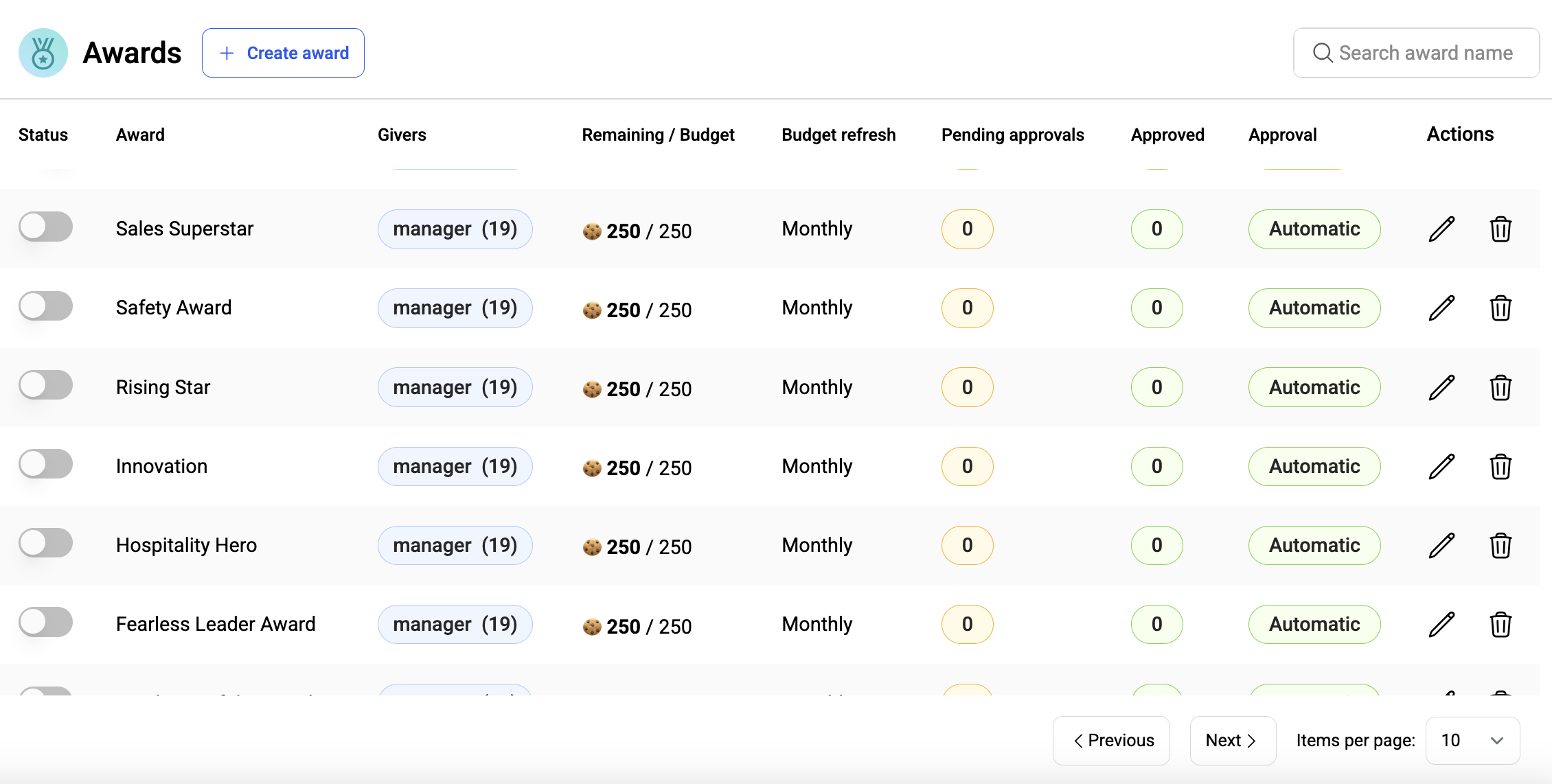
By default, new awards are off:
- Go to your admin page
- Select Recognition > Awards
- Toggle the award on
- Givers will now see the option to give this award
Managing Awards
Edit an Award
You CANNOT edit (if pending awards exist): Total budget, approval settings
- Go to your admin page
- Select Recognition > Awards
- Click the pencil icon next to the award
- Update any details you can edit
- Click 'Save all changes'
- Changes apply to future awards; existing pending/awarded remain unchanged
Delete an Award
- Go to your admin page
- Select Recognition > Awards
- Click the trash icon
- Confirm deletion
- Pending approvals are deleted; awarded posts remain in the feed
Turn Off an Award
- Go to your admin page
- Select Recognition > Awards
- Toggle the award off
- It won't be visible to givers
- Pending approvals remain pending; awarded posts stay in the feed
Giving an Award
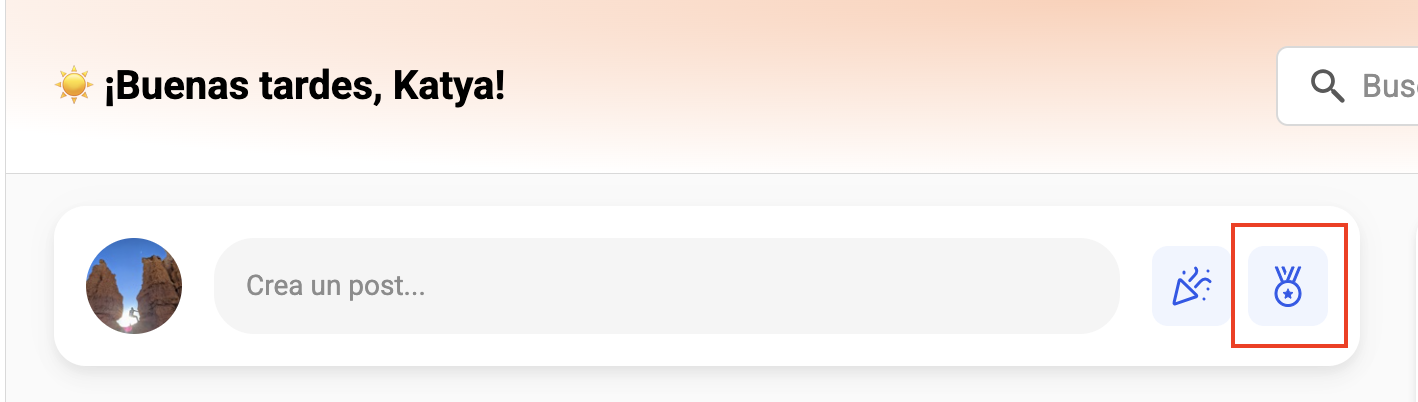
- Go to your home page or Recognition page
- Click 'Give award'
- Select the award
- Select the recipient(s)
- If points aren't pre-set, choose the amount (up to total remaining or maximum)
- Select a core value if optional
- Write a personal message
- By default, the award is public; click next to 'Share with' to set to private
- Click 'Give award'
Note: If approval required, the award is submitted for approval and won't post until approved.
Approving Awards
If you're designated as an approver, you'll receive notifications about approvals throughout the process.
Where to Find Pending Approvals
- Email notification
- Left navigation badge (if not an admin)
- Home page banner
- Notifications page > Activity section
Approving an Award
- Go to the Notifications page or Approvals section
- Click the green checkmark to approve
- If multiple approval levels, it goes to the next level
- If final approval, the award posts and points are given
- Recipients are notified
- Approvals cannot be undone
Denying an Award
- Click the red 'X'
- Provide optional feedback
- The award is denied completely
- The giver must give the award again if they want to resubmit
- Denials cannot be undone
Frequently Asked Questions
Can I give an award to multiple people at once?
Yes. Select multiple recipients in the 'Select recipient' step. All recipients get the same point amount if it's a fixed budget.
Can I give an award privately?
Yes. Change the visibility from 'Everyone' to 'Private' at the bottom of the award form. Private awards appear as DMs in Slack (if connected).
What happens if the monthly award budget runs out?
You can't give more awards until the budget refreshes next month. Check the budget remaining before giving.
- How to Give Recognition
- Understanding Points in Assembly
- How to Configure Recognition Settings in Admin
- Related Articles