
In this article:
Overview
This article is for Assembly admins.
Charity rewards let your employees make a positive social impact by redeeming points for donations to charitable organizations. You control which charities are available and can manage the catalog.
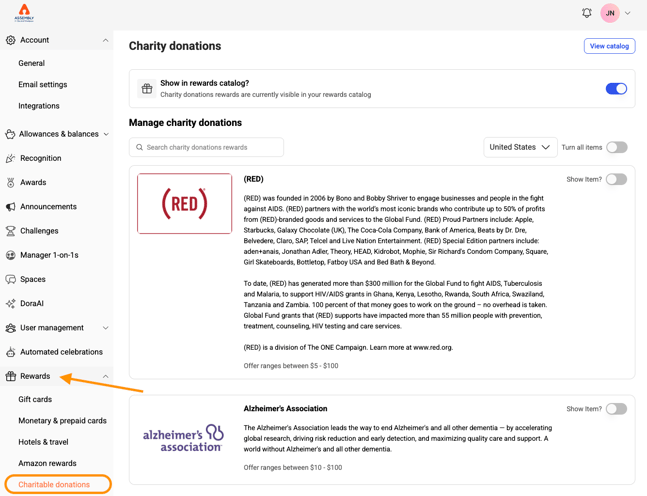
Who Can Use This Feature
- Only admins can set up charity rewards
- When enabled, all employees can redeem
Getting Started
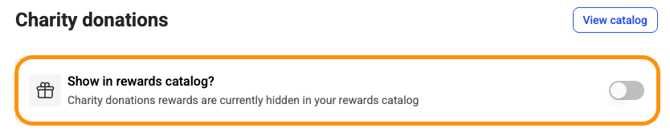
By default, the 'Charities' page is turned off in your rewards catalog, even though charities may be turned on individually. You must enable it for employees to see the option.
Enabling the Charity Rewards Catalog
- Go to your admin page
- Select Rewards > Charitable donations
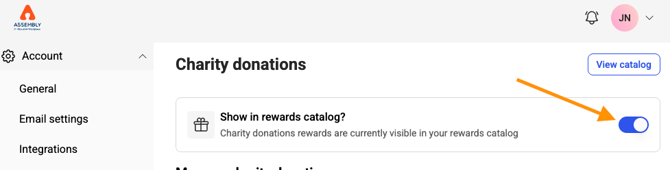
- Next to 'Show in rewards catalog?', turn the toggle on
- This displays all enabled charities to your employees
Managing Charity Availability
Turn All Charities On/Off (All Countries)
- Go to your admin page
- Select Rewards > Charitable donations
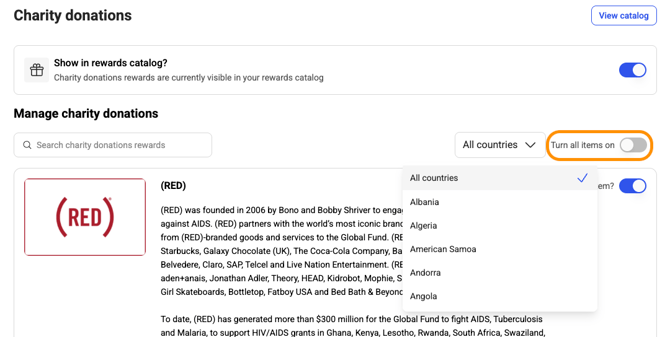
- Select 'All countries'
- Enable or disable the 'Turn all items on/off' toggle
- If disabled, all charities are turned off and the page is removed from the catalog
Turn All Charities On/Off (Specific Country)
- Go to your admin page
- Select Rewards > Charitable donations
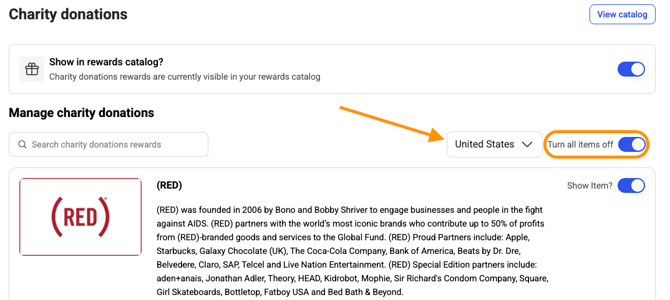
- Select the country from the dropdown
- Enable or disable the 'Turn all items on/off' toggle
- If disabled, charities for that country are off; charities in other countries remain available
Turn Specific Charities On/Off
- Go to your admin page
- Select Rewards > Charitable donations
- Toggle individual charities on or off in the list
Disabling the Catalog
- Go to your admin page
- Select Rewards > Charitable donations
- Next to 'Show in rewards catalog?', turn the toggle off
- This hides the page from all employees, even if charities are still enabled
How Employees Donate
- Go to app.joinassembly.com
- Click 'Rewards' in the left menu
- Select 'Charities'
- Select the charity you want to donate to
- Enter the amount of points to donate (converts to a dollar amount)
- Click 'Redeem'
- Confirmation email sent
Billing
You are billed for every individual charitable donation. View all donations in your Redemption Report:
- Go to your admin page
- Select Reports > Redemption
- Filter by 'Charities'
Important Notes:
- Charitable donations are non-refundable
- Charities are country-specific and available vary by location
- Employees receive confirmation emails after donating
Frequently Asked Questions
Can I add my own charities to the list?
The charity list is managed by Assembly. If you'd like to suggest additional charities, contact our support team.
Can donations be reversed?
No. Charitable donations are permanent and non-refundable, as funds go directly to the charity.