
Last Updated: June 16, 2026
In this article:
- Overview
- About Account Balances
- Adding Balance and Funds
- Auto-Reload Settings
- Transaction History Reports
- Invoices & Monthly Billing
- Which Rewards Use Account Balance
- FAQs
Note: As Assembly features are being incorporated into Quantum Workplace, some users may see a slightly different experience than what is described in this article. The content below reflects the Quantum Workplace Rewards & Recognition platform experience.
Overview
Your Assembly Rewards account balance is a single, unified fund that pays for all reward redemptions—gift cards, monetary rewards, charities, and travel experiences. Only admins can view and manage billing.
You can pre-load funds using a credit card, bank transfer, or wire transfer, or enable auto-reload to keep your balance topped up automatically. All billing activity appears in your transaction history, and you can download reports for accounting purposes.
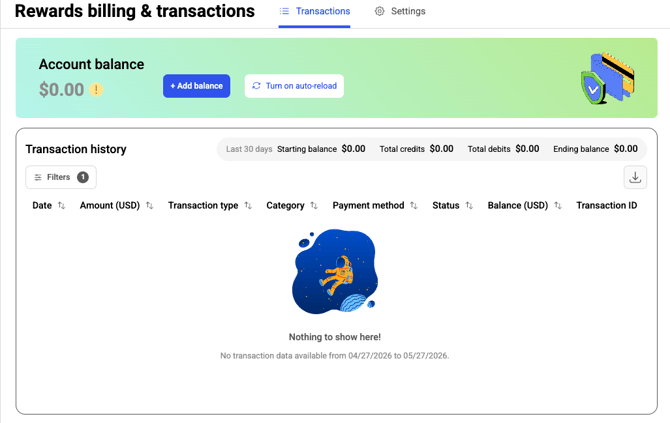
[Screenshot: Rewards admin billing dashboard showing account balance at top]
Account Balance Overview
What Is Account Balance?
Your Account balance represents the financial balance your company uses to pay for Assembly Rewards redemptions. It is a single, unified balance that applies to all reward redemptions and billing activity. It shows the total amount available for redemptions and updates automatically as funds are added (credited) or rewards are redeemed (debited).
The account balance applies only to Assembly Rewards. It does not include subscription payments or other non-rewards billing.
Where to Find It
- Click Recognition and Rewards in Quantum Workplace
- Select your profile picture in Assembly
- Click Recognition and Rewards Settings
- Click Rewards in the left navigation
- Click Billing & transactions.
Your account balance is displayed at the top of the page.
Understanding Balance Values
- Positive balance (> $0) — pre-loaded funds currently available for redemptions
- Zero balance ($0) — no available funds; you need to add balance to start redeeming
- Negative balance (< $0) — owed amount (invoice-billed customers only); shown temporarily until the invoice is generated and paid
Adding Balance & Funds
How to Add Balance
- Click Recognition and Rewards in Quantum Workplace
- Select your profile picture in Assembly
- Click Recognition and Rewards Settings
- Click Rewards in the left navigation
- Click Billing & transactions.
- Click Add Balance
- Enter the amount you want to add (USD only)
- Click Next
- Choose your payment method
Payment Methods
Credit Card (Instant)
- Funds are available immediately
- Processing fee: 3.5% (charged by Stripe; applies to customers onboarded on or after February 1, 2026)
Bank Transfer (ACH)
- Takes 3-6 business days after payment to transfer
- We recommend adding sufficient balance to avoid interruptions in reward redemptions
Wire Transfer
- Go to Add Balance
- Enter the amount and click Next
- Select Wire Transfer
- Click Generate Invoice
- Click View/Download Invoice
- Complete the transfer using the bank details shown on the invoice
- Processing time: 2-10 business days
- The transfer amount must match the invoice amount exactly
- Complete the transfer before the due date shown on the invoice
Payment Confirmation
Once payment is confirmed, funds are added to your Account Balance and available immediately for reward redemptions. A confirmation email is sent automatically. If confirmation is not received within 7-10 business days for wire transfers, contact Support.
Auto-Reload Settings
Feature Overview
Auto-reload automatically adds funds to your Account Balance when it falls below a minimum amount you set. This ensures your team always has funds available for reward redemptions without manual top-ups. Auto-reload is turned off by default.
Where to Find It
- Click Recognition and Rewards in Quantum Workplace
- Select your profile picture in Assembly
- Click Recognition and Rewards Settings
- Click Rewards in the left navigation
- Click Billing & transactions.
- Click on the Settings tab
- Click Turn on Auto-reload
How to Enable Auto-Reload
- Go to the Settings tab
- In the Auto-reload section, turn the toggle ON
- Enter the Minimum balance (the threshold that triggers auto-reload)
- Click Next
- Enter the Reload amount (how much to add each time)
- Click Next
- Select your payment method (Credit Card or Bank Transfer)
- Review your settings and click Confirm Auto-reload
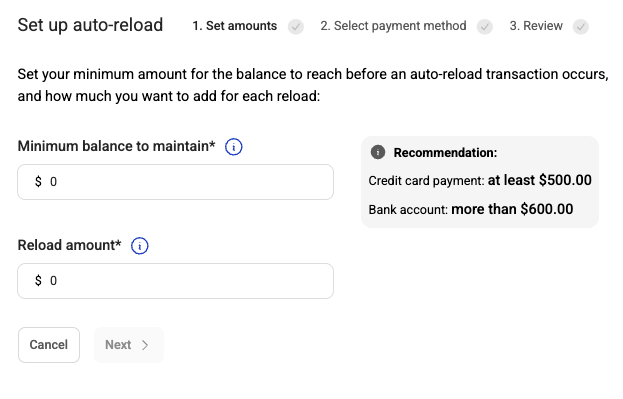
Once enabled, all auto-reload entries appear in Transaction History, clearly marked as auto-reload transactions.
How to Edit Auto-Reload Settings
- Go to Settings → Auto-reload
- Click Edit
- Update the minimum balance, reload amount, or payment method
- Click Save
How to Disable Auto-Reload
- Toggle Auto-reload OFF
- You will be prompted to confirm
- Click Yes, disable to confirm
Transaction History Reports
What Is Transaction History?
Transaction History is your central place to view all activity associated with your Assembly Rewards Account Balance. Here you can review every individual transaction with full details, including starting balance, total credits, total debits, and ending balance for your selected date range. Only admins can view and download transaction history.
Where to Find It
- Go to your Admin page
- In the left-hand menu, click Rewards
- Select Admin → Billing & transactions
- You will land on the Transactions tab
What You'll See by Default
By default, you see the last 30 days:
- Starting balance — balance at the beginning of your date range
- Total credits — funds added, auto-reloads, refunds
- Total debits — redemptions, fees
- Ending balance — balance at the end of your date range
Below the summary, you see a detailed list of every transaction:
- Date & time — when the transaction occurred
- Amount (USD) — transaction amount
- Type — Credit (funds added, refunds) or Debit (redemptions, fees)
- Category — Redemption, Balance Added (Manual/Auto-reload), Refunds, Invoice Settlement
- Payment method — Credit Card, Bank Transfer, Wire Transfer, Invoice, Account Balance
- Status — Success, Failed, or Pending
- Balance after transaction — running balance
- Unique Transaction ID — identifier for the transaction
Filtering Your Transactions
Filter by:
- Date range
- Status (Success, Failed, Pending)
- Transaction type (Credit or Debit)
- Category
- Amount
- Payment method
Downloading a Report
- Click Download
- Choose your preferred file format if available
- Your file will be generated and available for download
Payment Status Definitions
- Success — Funds were added or redemption completed successfully. Account Balance updates immediately.
- Failed — A payment attempt did not go through (payment declined, expired card, cancelled by user, insufficient balance, or reward unavailable). No balance change occurs.
- Pending — A bank transfer or wire transfer is initiated but not yet confirmed. Pending transactions do not affect your Account Balance until confirmed. Allow a few business days for processing.
Invoices & Monthly Billing
About Invoice Billing
Only organizations approved for invoice billing (Verified-by-Admin customers) will see invoices. This feature applies only to Assembly Rewards. Subscription billing and other non-rewards payments continue to be handled separately. We do not offer invoice billing to new customers.
During the Monthly Billing Cycle
As your organization redeems rewards:
- All redemptions appear as debits in Transaction History
- Your Account Balance may temporarily go negative (invoice-billed customers only)
When the Monthly Invoice Is Generated
At the end of the billing cycle:
- Any owed amount is moved from Account Balance into a Stripe invoice
- Your Account Balance resets to $0
- You see a notification showing any Open invoices
- Admins can click View Invoices to review and complete payment
Paying the Invoice
- Click View Invoices
- Select the invoice
- Complete payment using your preferred payment method (Stripe)
Overpayments
If you pay more than the invoice amount, the extra amount is automatically added to your Account Balance and available immediately for redemptions. Example: Invoice = $1,000, Payment = $1,200 → Invoice marked Paid, $200 added to Account Balance.
Where to Find Invoices
- Go to your Admin page
- In the left-hand menu, click Rewards
- Select Admin → Billing & transactions
- Open the Invoices section or click View Invoices (if you have open invoices)
If you have unpaid invoices, a badge shows the number of outstanding invoices.
Invoice Activity in Transaction History
Your Transaction History includes summarized entries for:
- Invoice settlements
- Adjustments from overpayments or refunds
- Credits added back to your Account Balance
Which Rewards Use Account Balance
Account Balance funds the following reward types:
- Gift cards
- Monetary rewards & prepaid cards
- Charities
- Hotels & travel (Experiences)
- Amazon (Simple setup configuration)
Exceptions to Account Balance Charges
These reward types have special billing arrangements and will not be charged to your Account Balance:
- Swag Redemptions (Covver, Axomo, Custom swag) — You are charged directly through Covver/Axomo or your swag provider; only points are debited from Assembly
- Amazon (Multi-seat and Single admin configurations) — You are charged directly by Amazon; only points are debited from Assembly
- Culture Rewards — Fulfillment is handled by your organization; only points are debited; no Assembly charges apply
Insufficient Balance
If your balance is low or insufficient at the time of a rewards transaction, we will automatically bill your default stored payment method. If this backup payment fails, the reward redemption will fail until you update your account balance and/or default payment method.
FAQ
How long does it take to add balance?
Credit card additions are instant. Bank transfers take 3-6 business days. Wire transfers take 2-10 business days.
What if my credit card is declined?
The payment will fail and no balance will be added. Check that your card is valid and has sufficient funds. You can try again with the same card or add a different payment method.
Can I use multiple payment methods?
Yes. You can save multiple credit cards and bank accounts, and select which one to use when adding balance or setting up auto-reload.
How often is auto-reload triggered?
Auto-reload triggers whenever your balance falls below the minimum threshold you set. Each reload adds the amount you specified.
Do wire transfer fees apply?
Wire transfer fees may vary by your financial institution. Assembly's platform does not charge additional fees for wire transfers.