
Last Updated: November 23, 2026
In this article:
Overview
The Outlook 1-on-1 integration helps you easily find a time for 1-on-1s and keep your calendar up to date when things shift. View both participants’ availability while scheduling in Quantum Workplace, then manage meeting details in Quantum Workplace or Outlook.
Once your organization connects Microsoft 365, scheduled 1-on-1s appear on the facilitator’s Outlook calendar, and the employee receives an Outlook invitation. Changes to the meeting’s title, date, time, duration, location, or cancellation status automatically sync between the two platforms.

Requirements
- Your organization uses Microsoft 365 with Outlook.
- The Outlook integration is enabled for your organization.
- Setup requires Microsoft 365 admin permissions and either full Admin or IT Admin access in Quantum Workplace.
Note: An admin connects the integration for the entire organization. Employees do not need to connect their calendars individually.
Connect Outlook
An admin completes a one-time connection to Microsoft 365 and approves the permissions required for calendar availability and meeting sync.
Once connected, the integration applies to the entire organization. Existing eligible 1-on-1 calendar invitations are updated automatically, without employees needing to delete or resend invitations.
Note: The Outlook integration is separate from the Outlook add-on and requires its own setup, which allows you to give feedback or take private notes via the plugin directly.
Schedule a 1-on-1
Begin by scheduling your 1-on-1 in Quantum Workplace. The scheduling experience displays both participants’ calendar availability, helping you select a time without opening Outlook.
To schedule a 1-on-1:
- Click 1-on-1s in the left navigation
- Select Your 1-on-1s, then choose a template or create your own
- Below the agenda builder, click Add a Date and Time
- View the participants’ calendars simultaneously and select the scheduling details accordingly
- Optionally, make the 1-on-1 recurring for a regular meeting cadence
- Save the scheduled 1-on-1
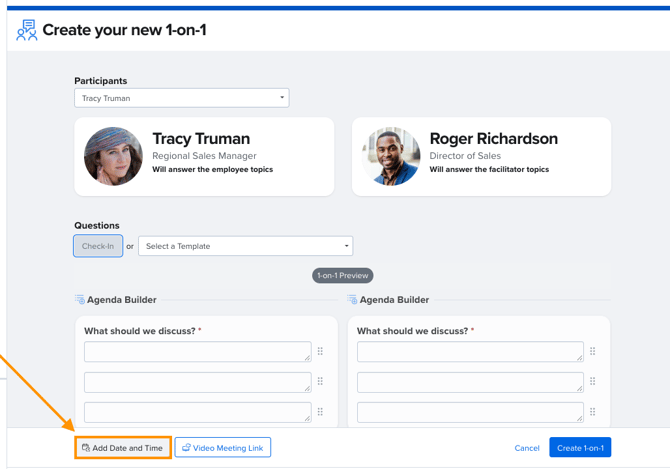
The meeting appears on the facilitator’s Outlook calendar, and the employee receives an Outlook invitation.
Availability shows when each participant is free or busy without displaying the details of other calendar events.
Note: Create and initially schedule the 1-on-1 in Quantum Workplace. Creating a meeting directly in Outlook will not create a corresponding 1-on-1 in Quantum Workplace, but future updates will reflect both ways.
Manage Scheduled 1-on-1s
After scheduling, you can update meeting details in Quantum Workplace or Outlook. Supported changes sync automatically between the two platforms.
Reschedule in Outlook
- The facilitator is the meeting organizer in Outlook and can change the meeting’s date, time, duration, or location directly from their calendar.
- Employees can use Outlook’s option to propose a new time to the facilitator. The proposed time becomes the meeting time once the facilitator accepts it.
- Employees can also edit their 1-on-1’s scheduled time in Quantum Workplace.
Update Recurring Meetings
Supported changes also sync for an individual occurrence of a recurring 1-on-1. For example, the facilitator can reschedule one meeting in Outlook without changing the rest of the series.
Calendar Sync
The Outlook integration keeps the following meeting details in sync:
|
Meeting detail |
Syncs between Quantum Workplace and Outlook |
|
Date and time |
Yes |
|
Duration |
Yes |
|
Location |
Yes |
|
Cancellation |
Yes |
|
Meeting title |
No |
|
Notes |
No |
|
Attendee changes |
No |
Important to note, meeting acceptance and decline responses are not tracked in Quantum Workplace. The integration does not automatically create Microsoft Teams links or book meeting rooms.
Sync Window
Calendar sync covers meetings from 30 days in the past through six months in the future. This window moves forward daily.
Existing eligible invitations within this window are updated automatically when the integration is connected. Meetings scheduled farther in the future become eligible as they enter the window.
If you need to update a meeting more than six months away, make the change in Quantum Workplace. Changes made in Outlook outside the sync window do not sync back to Quantum Workplace.
FAQs
Do I need to connect my own Outlook calendar?
No. An admin connects Microsoft 365 once for your entire organization.
Do I need to delete existing calendar invitations?
No. Eligible existing invitations are updated automatically. Calendar sync covers meetings from 30 days in the past through six months in the future. This window moves forward daily. You do not need to delete or resend them.
You may occasionally notice a cancellation email or an additional calendar entry from a previous invitation during the connection process.
Why can’t I move the meeting in Outlook?
The facilitator is the meeting organizer in Outlook and they maintain the ability to edit the event in both Outlook and Quantum Workplace. Employees can propose a new time in Outlook or edit the scheduled time in Quantum Workplace.
An existing invitation for a meeting more than six months in the future may also be outside the sync window. Update that meeting in Quantum Workplace.
Why hasn’t my calendar change appeared?
Allow a few minutes for the update to sync. If the event doesn’t appear within 10 minutes, review the event in Quantum Workplace to ensure the setup process was complete.
Confirm that the meeting is within the sync window and that you changed a supported meeting detail. Titles, notes, and attendee changes are not included in the sync.
Can I use the integration with Google Calendar?
The integration connects to Microsoft 365 and Outlook. Organizations that do not connect Outlook continue to receive calendar invitations by email only.
Does the integration schedule performance review conversations?
The integration supports scheduling for 1-on-1s at this time.
What happens if my organization disconnects Outlook?
Only an admin can revoke the connection. In this case, the organization returns to receiving calendar invitations by email, and existing Outlook meetings remain on the calendar. Disconnecting the integration flips any existing events to ICS.