
Last Updated: June 16, 2026
In this article:
- Overview
- Who Can Set This Up
- Getting Started
- Enabling Monetary Rewards and Prepaid Cards
- Managing Availability by Country
- Disabling the Catalog
- How Employees Redeem
- Billing
- Important Notes
- FAQs
Note: As Assembly features are being incorporated into Quantum Workplace, some users may see a slightly different experience than what is described in this article. The content below reflects the Quantum Workplace Rewards & Recognition platform experience.
Overview
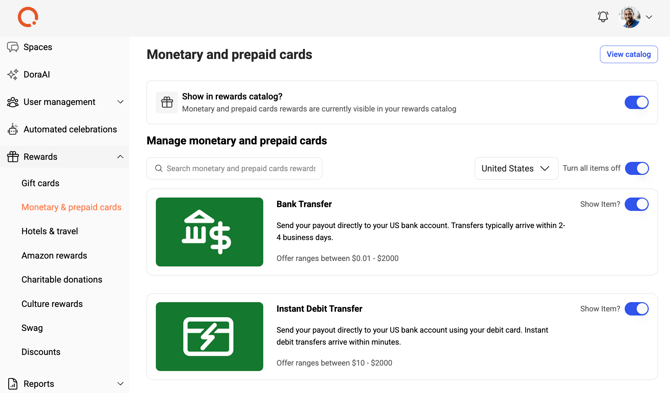
Monetary rewards and prepaid cards allow employees to redeem points for direct cash deposits or flexible prepaid cards they can use with any vendor. Set up which options are available for your organization.
Who Can Set This Up
- Only admins can set up monetary rewards and prepaid cards
- When enabled, all employees have access to redeem
Getting Started
By default, the 'Monetary & Prepaid Cards' page is turned off in your rewards catalog, even though individual reward items may be turned on. You must enable it for employees to see these options.
Enabling Monetary Rewards and Prepaid Cards
- Click Recognition
- Select your profile picture in Assembly
- Select Rewards > Monetary & Prepaid Cards
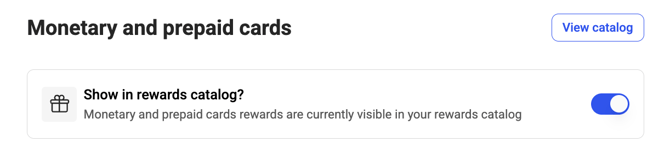
- Next to 'Show in rewards catalog?', turn the toggle on
- This shows all enabled monetary rewards and prepaid cards to your employees
Managing Availability by Country
Monetary rewards and prepaid cards availability varies by country.
Turn All Rewards On/Off (All Countries)
- Click Recognition
- Select your profile picture in Assembly
- Click Admin
- Select Rewards > Monetary & Prepaid Cards
- Select 'All countries' from the dropdown
- Enable or disable the 'Turn all on' toggle
- If disabled, all rewards are turned off for all countries, and the page is automatically removed from the catalog
Turn All Rewards On/Off (Specific Country)
- Click Recognition
- Select your profile picture in Assembly
- Click Admin
- Select Rewards > Monetary & Prepaid Cards
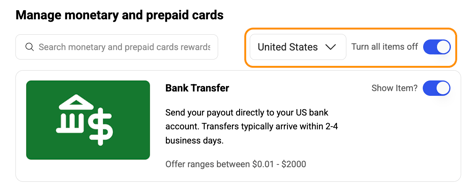
- Select the country from the dropdown
- Enable or disable the 'Turn all on' toggle
- If disabled, all rewards for that country are off, but rewards for other countries remain enabled
Turn Specific Rewards On/Off
- Click Recognition
- Select your profile picture in Assembly
- Click Admin
- Select Rewards > Monetary & Prepaid Cards
- Toggle individual rewards on or off in the list
- If 'Turn all on' is enabled but you disable specific items, those items remain disabled
Disabling the Catalog
- Click Recognition
- Select your profile picture in Assembly
- Click Admin
- Select Rewards > Monetary & Prepaid Cards
- Next to 'Show in rewards catalog?', turn the toggle off
- This automatically hides the page from all employees, even if individual items are still enabled
How Employees Redeem
- Go Recognition
- Click 'Rewards' in the left navigation in Assembly
- Select 'Monetary & Prepaid Card'
- Select the reward you want to redeem
- Enter the amount of points to redeem
- Click 'Redeem'
- Instructions for using your reward will be sent to your email
Billing
You are billed for every individual redemption. View all redemptions in your Redemption Report:
- Click Recognition, then select your profile picture in Assembly
- Click Admin
- Select Reports > Redemption
- Filter by 'Monetary & Prepaid Cards'
Important Notes
- Monetary reward and prepaid card redemptions are non-refundable
- Ensure redemptions use valid currency for the recipient's country
- Employees receive instructions via email immediately after redemption
Frequently Asked Questions
Can employees use prepaid cards internationally?
Prepaid cards are country-specific. Ensure employees redeem cards that are valid in their country.
What if an employee redeems and doesn't use the card?
Redemptions are non-refundable. Employees should ensure they want the reward before redeeming.