
Last Updated: October 13, 2026
In this article:
- Requirements
- How to Install
- How the Teams integration works
- Example Notifications & Functionality
- Key Limitations
- Permissions
- Troubleshooting
Requirements
In order to install the Microsoft Teams integration, you must:
- Be a Full Administrator or IT Administrator in Quantum Workplace. This is what allows you to see the Teams setup screen.
- Be a Microsoft 365 administrator with permission to manage or install Teams apps for your organization. Depending on your Teams permissions, you may also need to be a Team Owner.
- Complete the Add to Teams step with an account that has Microsoft tenant admin rights, or have your tenant admin grant consent in advance. The sign-in step requests permissions on behalf of your whole organization, so a non-admin account will be stopped by a Microsoft consent message.
Note: A Microsoft 365 administrator can help authorize the Quantum Workplace integration in Microsoft Teams. If you're a Quantum Workplace administrator but don't have the required Microsoft permissions, contact your organization's Microsoft 365 administrator to approve the integration or grant the necessary consent before continuing setup.
Setup requires the following steps:
| Step | Who does it | Where |
|---|---|---|
| Approve the Quantum Workplace app and confirm no app permission policy blocks it | Microsoft 365 / Teams admin | Teams Admin Center |
| Click Add to Teams and sign in to complete the connection | Quantum Workplace admin, using an account with Microsoft tenant admin rights | Quantum Workplace |
| Confirm users are matching | Quantum Workplace admin | Quantum Workplace |
How to Install
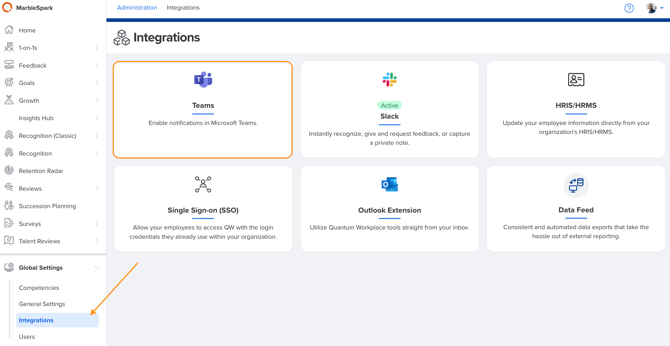
- Click Global Settings, then select Integrations.
- Click on the Microsoft Teams card.
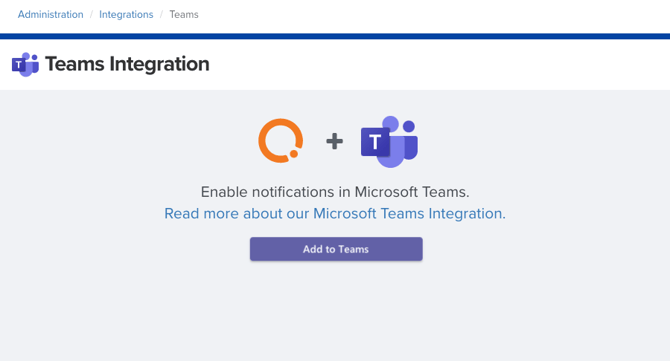
- Click Add to Teams to log in to your Team.
- Sign in to your Microsoft account when prompted (if you're not already signed in).
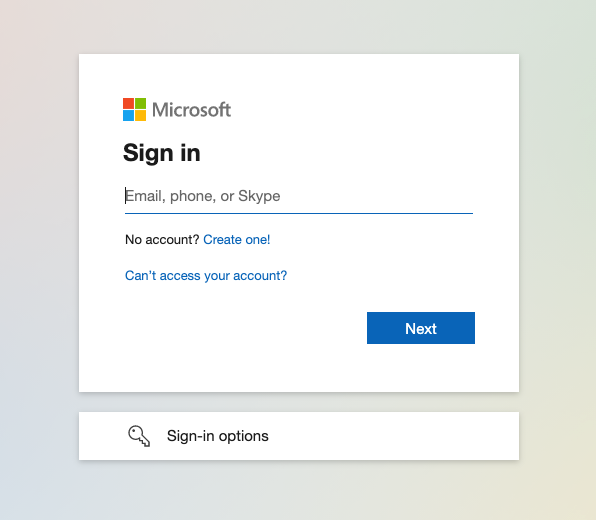
Note: You must have permission to install the Quantum Workplace app to your Team to proceed. If you do not have permission to install apps on Teams, you can share this help article with your Teams Owner to allow them to install the integration on your behalf. -
Review and accept the requested permissions.
Important: Approving the Quantum Workplace app in the Teams Admin Center does not activate the integration on its own. Someone must still complete steps 1–5 inside Quantum Workplace. Until that happens, the integration will show as inactive and no notifications will send.
If you do not have permission to install apps in Teams, share this article with your Teams Owner so they can install it on your behalf.
How the Teams Integration works
Notifications are sent as direct messages
Employees receive notifications from the Quantum Workplace app as a direct message in Teams. Notifications are not posted in a shared channel.
Each message includes a button that opens the related item in Quantum Workplace. The link is unique to the employee, so their activity is attributed to the correct person.
Employees don't need to install the app
Employees don't need to install the Quantum Workplace app themselves.
Once the integration is active, the app is automatically installed in the background for an employee the first time a notification is sent to them. Your IT team does not need to install or push the app to individual employees.
How employees are matched
Quantum Workplace matches employees using their email addresses.
The integration compares the employee's email address in Quantum Workplace with the email addresses associated with their Microsoft account in Teams.
You can view or update an employee's email address in Global Settings > Users.
Using an HRIS integration? If employee email addresses are populated by your HRIS, update the email address in your HRIS instead. Otherwise, the HRIS may overwrite your changes in Quantum Workplace.
What if an employee's email addresses don't match?
Custom field mapping is not supported. The integration always uses email addresses to find a matching Microsoft account.
However, Quantum Workplace checks all email addresses associated with the employee's Microsoft account, including aliases. This means the email address in Quantum Workplace does not have to match the employee's Microsoft sign-in address (UPN) as long as it matches one of the email addresses or aliases on their Microsoft account.
If none of the employee's email addresses match, you can use a workaround by making SSO optional. This allows the employee to sign in using an email address that matches their Teams account.
What activity triggers Teams notifications?
Employees can receive Teams notifications for activity in Quantum Workplace, including:
- Survey invitations and reminders
- Recognition activity
- Goal updates
- 1-on-1 activity
- Feedback
- Performance review tasks and reminders
Employees can manage preferences by checking their Account Settings.
Discover even more ways to support your team and grow with Quantum Workplace. Explore what's possible.
Examples
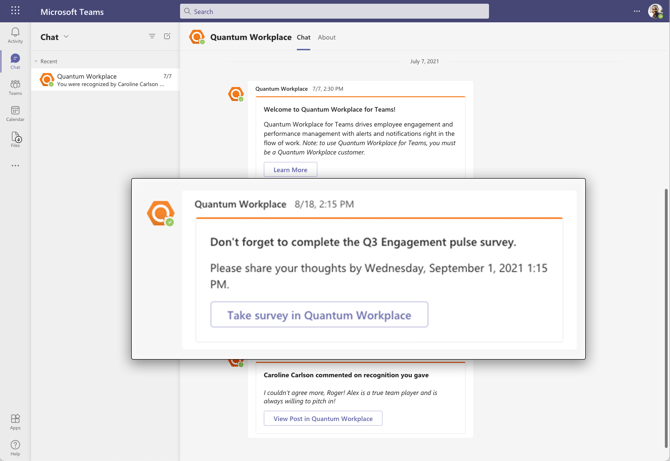
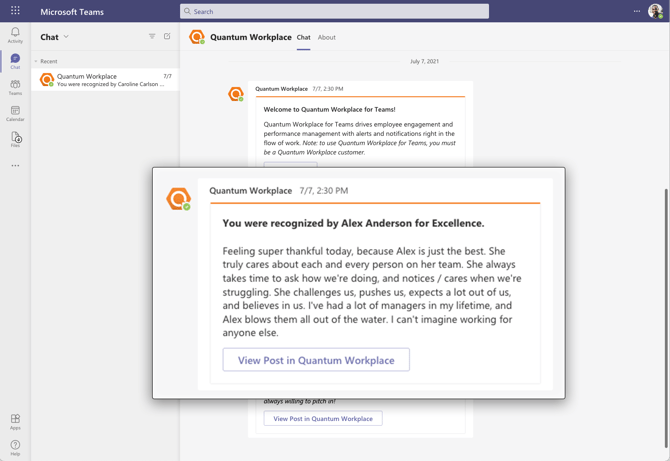
Notifications are sent via direct message from Quantum Workplace to the employee.
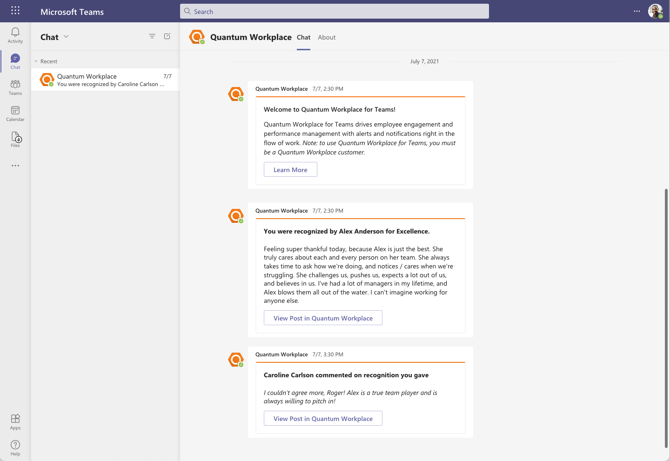
Here's a larger preview of a Survey notification.
Here's a larger preview of a Recognition notification.
Key Limitations
The Teams integration has a few important limitations to keep in mind.
Administrators can't choose which notifications go to Teams
Teams notifications are enabled for the organization as a whole. When the integration is active, employees can receive all notification types that support Teams.
Administrators cannot choose to send only certain types of notifications, such as survey notifications, or exclude specific types, such as performance notifications.
Microsoft Teams Integrations cannot be turned on or off for select individuals
Quantum Workplace does not support enabling the Microsoft Teams integration for specific employees or groups within the platform.
However, your organization's Microsoft 365 administrator may be able to manage which employees have access to the Quantum Workplace app through Microsoft's app-centric management settings. This can be helpful if you want to test the integration with a smaller group before making it available across your organization.
To learn more, see Microsoft's guide to app-centric management.
Note: App availability and management options depend on your organization's Microsoft Teams configuration. Contact your Microsoft 365 administrator for assistance.
Employees can turn off Teams notifications
Each employee can choose whether to receive Teams notifications from their Account Settings.
This is a single on or off setting. Employees cannot choose to receive some types of Teams notifications while turning off others.
Important: Uninstalling the Quantum Workplace app from Teams does not turn off Teams notifications. The app will automatically install again the next time a new Teams notification is sent. To stop receiving Teams notifications, employees should turn them off in Account Settings.
Some email notifications don't have a Teams equivalent
Most Quantum Workplace notifications can also be sent through Teams, including notifications for:
- Goals
- Feedback
- 1-on-1s
- Performance Reviews
- Recognition
- Pulse Surveys
- Talent Reviews
A small number of notifications are email only, including some sharing and approval notifications and a few low-volume Survey notifications.
Recognition is sent directly to employees
The Teams integration does not create a public recognition channel.
Recognition notifications are sent as direct messages to individual employees. Unlike the Slack integration, Teams does not support posting recognition to a shared channel.
You can't choose Teams for an individual survey
You cannot route a specific survey through Teams.
The survey's participant list determines who is eligible to receive the survey and its notifications. It does not determine whether the notification is sent through Teams or email.
Employee notification preferences are always respected
Activating or reactivating the Teams integration does not override an employee's notification preference.
For example, if an employee has turned Teams notifications off and chosen to receive notifications by email instead, enabling the integration will not automatically switch them back to Teams.
Reporting doesn't show how employees responded
Survey reporting does not identify whether an employee responded using a Teams link or an email link. Response source is not reported separately.
What the Teams integration does not do
The Teams integration is designed to deliver notifications and provide links to Quantum Workplace. It does not:
- Allow employees to complete their Quantum Workplace work directly inside Teams
- Create Teams meeting links for 1-on-1s
- Replace the Outlook add-in
The Outlook add-in is a separate integration with its own setup and functionality.
Permissions
As part of the installation process, the Microsoft Teams app requests 3 important permissions:
- Read all users' full profiles
- Allow the app to manage itself for all users
- Sign in and read user profile
See below for an explanation for the purpose of each permission:
1. Read all users' full profiles
Why we need it: To match employees in Microsoft Teams with their accounts in Quantum Workplace.
The integration uses email addresses to match accounts between the two systems. Quantum Workplace only uses the information needed for this matching. Other profile information is not used or collected.
2. Allow the app to manage itself for all users
Why we need it: To automatically install the Quantum Workplace app for employees when they need it.
When an employee receives their first Teams notification, the app can be installed automatically on their behalf. This means employees do not need to install the app individually.
This permission applies only to the Quantum Workplace app. It does not give Quantum Workplace permission to manage or install other Microsoft Teams apps.
3. Sign in and read user profile
Why we need it: This permission is added automatically by Microsoft and is used only to redirect page traffic during the installation and consent process.
Quantum Workplace does not use this permission to collect additional employee profile information.
Troubleshooting
I'm unable to install the Teams integration
If you are unable to install the integration, your Microsoft Teams administrators may have restricted who can install apps.
To install the Quantum Workplace app, you may need to do one of the following:
- Ask a Teams or Microsoft 365 administrator to approve the Quantum Workplace app and allow it to be installed.
- Ask your Teams administrator to grant you the permissions needed to install the app.
- Ask your Teams administrator to relax the app installation restrictions.
The app is blocked by an app permission policy
If you see an error indicating that the Quantum Workplace app is blocked by an app permission policy, your organization's Microsoft Teams app permission policies may be preventing the app from being installed.
Ask your Microsoft Teams administrator to review your organization's app permission policies and allow the Quantum Workplace app.
I uninstalled the Teams app, but I'm still receiving notifications
This is expected behavior. Uninstalling the Quantum Workplace app from Teams does not turn off Teams notifications.
The app automatically installs again the next time a new Teams notification is sent to you.
To stop receiving Teams notifications, go to Account Settings in Quantum Workplace and turn off Teams notifications.
The Teams integration isn't working for one or more employees
First, go to Global Settings > Integrations > Teams. This page shows:
- Whether the integration is active
- Which users are not currently matching
- The specific error for each unmatched user
If the integration is active but an employee isn't receiving Teams notifications, check how their email addresses are set up.
Quantum Workplace matches employees using the email addresses associated with their Microsoft account. This includes email aliases, so the email address in Quantum Workplace does not have to match the employee's Microsoft sign-in address (UPN) as long as it matches an email address or alias on their Microsoft account.
To check or update the email address in Quantum Workplace, go to Global Settings > Users.
Using an HRIS integration? Update the employee's email address in your HRIS instead. Changes made directly in Quantum Workplace may be overwritten by your HRIS integration.
If none of the employee's email addresses match their Microsoft account, see How employees are matched above for information about the available workaround.
Check the Teams integration status page before opening a support ticket. The information shown there may identify the cause of the issue and help you resolve it.
One HR platform for connected talent insights. See how Quantum Workplace brings your data together across 1-on-1s, talent reviews, performance reviews, and more—so you can spot trends, act fast, and make more informed people decisions. Explore the interactive product tour or request a personalized demo with your Customer Success Manager.