
Last Updated: September 15, 2026
In this article:
Overview
Survey demographics help organize participant data and enable meaningful reporting throughout the survey experience.
Some survey demographics are calculated automatically based on survey data and cannot be manually entered or updated through these tools.
The ability to manually manage survey demographics allows administrators to:
- Edit participant demographics individually
- Bulk update participant demographics using an import file
- Create survey-specific demographics
- Review demographic change history
- Restore previous demographic states if changes were made in error
These tools provide greater flexibility for autonomy in owning the maintenance of demographic data.
Important note: We recommend proceeding with caution when updating or changing demographic data. Continue reading for more details.
Important Considerations
Before making demographic changes, keep the following in mind:
Demographic Changes May Affect Reporting
Changes to demographic values can impact how survey data is grouped and displayed.
For example, changing a department name from one value to another may affect reporting continuity across surveys.
If your organization relies on historical reporting or trending across survey cycles, strongly consider working with your Quantum Workplace team before making large-scale demographic changes.
Change History Is Available
All demographic imports and updates are tracked in Change History.
Administrators can review previous changes and restore data to any prior state if necessary.
Survey-Specific Demographics
New demographics created through this workflow are available only within the survey where they were created.
Accessing Survey Demographics
To access survey demographics:
- Click Surveys, then Analytics
- Select a specific survey
- Navigate to Admin Controls in the top right corner
- Select Manage Survey Demographics
- Review the participant demographic list
From here, you can:
- Edit participant demographics
- Import demographic updates
- Add new demographics
- Review change history
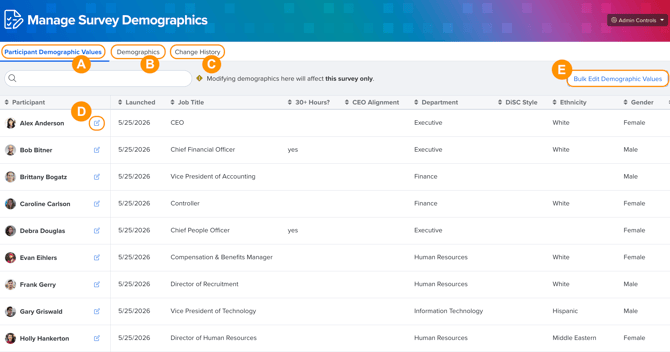
-
A. Participant Demographic Values: View and search all survey demographics.
-
B. Demographics: View and add survey-specific demographics in list form.
-
C. Change History: View and restore previous versions of survey demographics.
-
D. Edit Demographics: Click to make manual edits to survey demographics.
-
E. Bulk Edit Demographics: Make edits to survey demographics in bulk via file import.
Edit Individual Participant Demographics
Use this option when updating demographic information for a single participant. Importantly, some calculated demographics, cannot be manually updated.
-
Click Surveys, then Analytics
-
Select a specific survey
-
Click Admin Controls in the top right corner
-
Select Manage Survey Demographics
-
Locate the participant
-
Select the participant record
-
Update the desired demographic value
-
Click Save
-
Some standard demographics may provide predefined dropdown options to ensure consistent values.
Examples may include:
-
- Age Range
- Generation
- Tenure Range
Bulk Import Demographic Changes
Use a bulk import when updating demographic information for multiple participants at once.
To update survey demographics in bulk:

Download the Current Demographic File
- Navigate to Manage Survey Demographics
- Click Bulk Edit Demographics
- Download the current participant demographic file
- Open the downloaded file
- Make the desired demographic updates
- Save the file
- Important: Do not modify required identifier columns.
- Return to Bulk Edit Demographics
- Upload the updated file
- Review the validation summary carefully.
- The validation summary displays:
- Which demographics will be updated
- How many records will change
- The validation summary displays:
- Click Import, then Save
Once complete, the updates will be applied to survey participant records.
Add a Survey-Specific Demographic
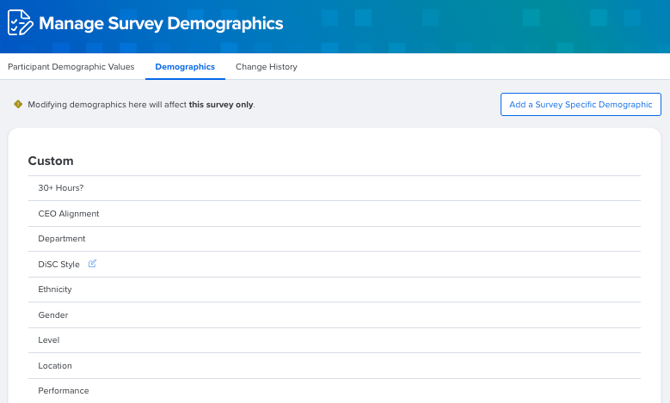
Survey-specific demographics can be used to capture additional information that is unique to a particular survey.
Examples may include:
- Business-specific metrics
- Program participation
- Organizational classifications
To add a survey-specific demographic:
- Navigate to Manage Survey Demographics
- Click the Demographics tab
- Select Add Survey Specific Demographic
- Enter a name for the demographic
- Save the new demographic
After creating the demographic, you may immediately import participant values or return later to complete the upload.
View and Restore Changes
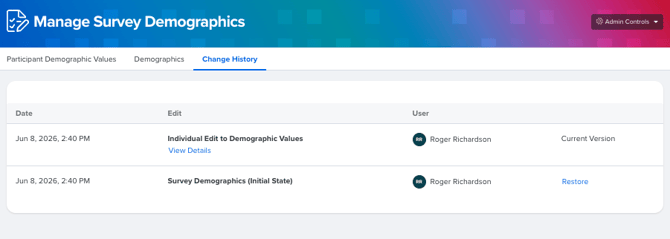
The Change History page provides visibility into demographic updates made within the survey.
To access Change History:
- Navigate to Manage Survey Demographics
- Select the Change History tab
Change History displays:
- Who made the change
- When the change occurred
- What type of change was made
- The number of records affected
Restore a Previous State
If demographic changes were made incorrectly:
- Open Change History
- Locate the change you want to reverse
- Select Restore
The system will restore the demographic data to its previous state.
FAQs
What types of demographic changes can I make?
You can:
- Update participant demographic values
- Import demographic changes in bulk
- Create survey-specific demographics
Can I undo a demographic import?
Yes.
All imports and updates are tracked in Change History and can be restored if needed.
Will demographic changes affect survey trends?
Potentially.
Changes to demographic values may impact how data is grouped across survey periods. If maintaining historical reporting is important, consult your Quantum Workplace team before making significant demographic changes.
Can I delete a survey-specific demographic?
Deletion of survey-specific demographics is not currently available through self-service tools.
If a demographic was created accidentally, contact Support for assistance.
Can I refresh point-in-time demographics?
No.
Point-in-time demographic refreshes remain managed through Quantum Workplace processes and are not available within the Manage Survey Demographics experience.