
Last Updated: May 19, 2026
In this article:
- Overview
- How to Add Users
- Merging Manual and HRIS Users
- How to View User Status
- Understanding Invitation Statuses
- FAQs
Overview
You can add users to your Assembly in two ways: manually via email or your invite URL, or automatically through HRIS connections.
When you connect to an HRIS identity provider, users transition between different invitation states depending on your settings and their status in your HRIS. Only Assembly admins can invite and manage users.
How to Add Users
Manual Invitations
Manually-invited users are those added directly by an admin through email or your Assembly's invite URL. They are not added through any HRIS connection. You can manually invite users at any time, regardless of whether you have an HRIS connected.
HRIS Connections
When you connect your Assembly to an HRIS, eligible employees are automatically added based on your sync settings. These users are managed by the HRIS and update automatically as changes occur in your identity provider.
Merging Manual and HRIS Users
When you have an HRIS connected, manually-invited users and HRIS-synced users can interact in specific ways:
- If you manually invite someone who already exists in your HRIS connection criteria, they will be merged into your HRIS connection and no longer treated as manually-invited.
- If a manually-invited user (who hasn't yet accepted) is added to your HRIS connection criteria, they will move from pending to queued.
- If you manually remove an HRIS-connected user, they will not be re-added via HRIS sync unless they are removed from the HRIS and re-added, or your sync settings change.
- If you remove a user in your HRIS who was previously manually-invited and merged, they will not be re-added unless you manually re-invite them or adjust your HRIS sync settings.
How to View User Status
To view the status of a user's Assembly account:
- Click Recognition in the left navigation
- Select your profile picture, then Admin
- Click User Management in the left navigation
- Click Manage users
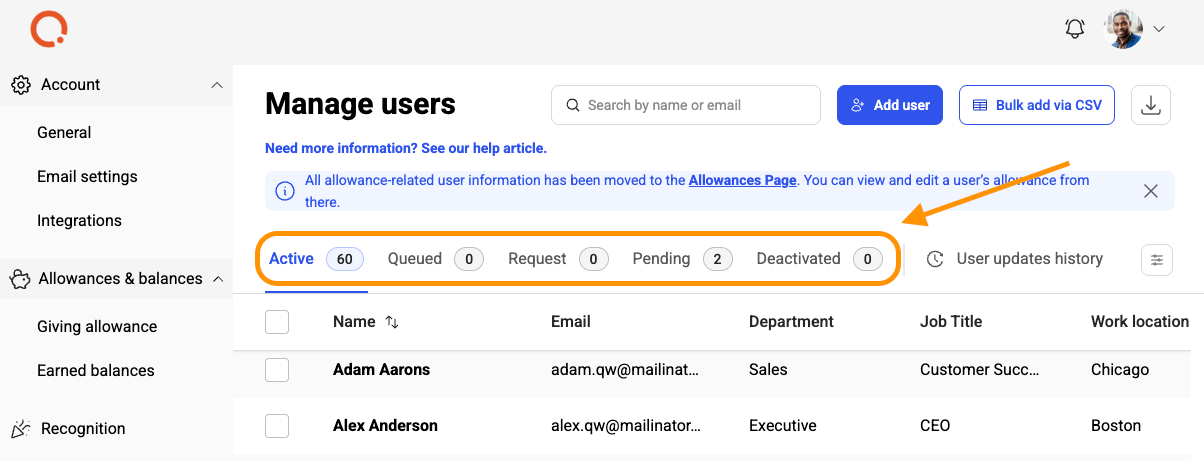
Understanding Invitation Statuses
Queued Invitations
When you connect to an HRIS and select the option to "send invitations later," users appear in Queued status. This gives you control over when invites are sent.
- Admins must manually approve and send these invitations from the manage users page.
- You can edit queued users (except their email address) or delete them at any time.
- If you delete a queued user, you'll need to either manually re-invite them or adjust your HRIS connection settings to invite them again.
Requested Invitations
When you connect to an HRIS and set "Admin Approval Required" for new users, they appear in Requested status. This adds an approval step before invites go out.
- You must manually review and approve these requests to send invitations.
- Approving a request moves the user to Approved and sends their invitation.
- You can deny requests, preventing those users from receiving an invitation. Denied users must be manually re-invited or added through HRIS settings changes.
- You can edit requested users (except their email address) at any time.
Pending Invitations
Pending users are those waiting to accept their invitation. This applies to both manually-invited and HRIS-invited users.
- You can edit pending users' information (except their email address) by selecting them and clicking the edit icon.
- You can delete a pending user or send them a reminder to accept their invitation at any time.
- Sending a reminder generates an email prompting them to accept.
- Free plan accounts only see users in pending status.
Approved Invitations
Approved users have been invited and are waiting for them to accept. Approved status typically appears for users who've been approved from the Requests tab and are now awaiting their response.
Frequently Asked Questions
Can I change a user's email address after inviting them?
No. For security purposes, you cannot change a user's email once they've been invited. You must delete the invitation and resend to the correct email address, or contact Assembly support for assistance.
What happens if I remove a manually-invited user who was never added to the HRIS?
If you remove a manually-invited user (who was never part of HRIS sync), updating your HRIS connection criteria to include them will not re-add them. They must be manually re-invited.
Can I have users in all four invitation statuses at once?
Yes, it's possible to have users in any or all of these sections simultaneously, depending on your settings and how users have been invited. However, free plan accounts only show users in pending status.