
Last Updated: June 16, 2026
In this article:
- Overview
- Set Currency Name and Emoji
- Set Exchange Rates
- Set Default Allowance
- Allowance Proration
- Create Custom Allowance Rules
- Edit or Delete Custom Rules
- User Allowances
- One-Time Allowance Deposits
- FAQs
Note: As Assembly features are being incorporated into Quantum Workplace, some users may see a slightly different experience than what is described in this article. The content below reflects the Quantum Workplace Rewards & Recognition platform experience.
Overview
Admins can manage the allowances your employees have to give to each other through recognition points. This guide covers setting currency, defining point values, creating allowances, and managing custom allowance rules.
Set Currency Name and Emoji
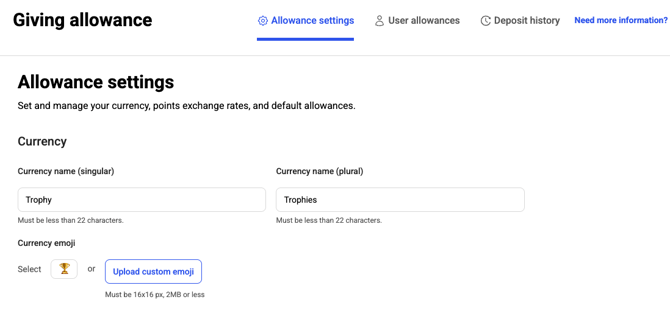
Note: We recommend avoiding the use of actual currency names (such as Dollars, Euros, or Pounds) and currency-related emojis when naming your points. Doing so can create confusion about point values and exchange rates, particularly for organizations operating across multiple countries and currencies. Instead, choose a unique point name that clearly distinguishes points from real-world currency.
- Click Recognition
- Click your profile picture, then Admin
- Select 'Allowances & balances' in the left navigation
- Click Giving allowance
- Enter the singular name of your currency (e.g., 'Trophy')
- Enter the plural name (e.g., 'Trophies')
- Select an emoji for your currency
- To upload a custom emoji, click 'Upload custom emoji'
- Custom emojis override the default selection
- Remove custom emoji by clicking the 'X'
Set Exchange Rates
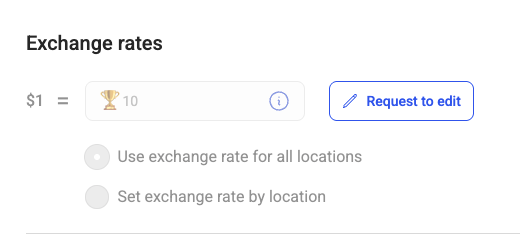
By default, $1 USD = 10 points. You can change this and set different rates for different locations.
We recommend using the default 10:1 ratio. A higher point value tends to feel more rewarding and encourages participation in giving recognition.
For example, earning 10 points often feels more meaningful to employees than earning 1 point, even when the underlying value is the same.
Set Default Exchange Rate
- Click Recognition
- Click your profile picture, then Admin
- Select 'Allowances & balances' in the left navigation
- Click Giving allowance
- For security, click 'Request to edit' to unlock the field for one hour.
- This will initiate a conversation with our support team to verify and unlock this functionality.
- Set the point value (e.g., $1 = 100 points)
- This becomes your default for all employees
Exchange Rate Examples
- $1 = 100 points ($0.01 per point)
- $1 = 50 points ($0.02 per point)
- $1 = 20 points ($0.05 per point)
- $1 = 10 points ($0.10 per point)
Set Exchange Rate by Location
Employees in different countries can have different point values:
- Click Recognition
- Click your profile picture, then Admin
- Select 'Allowances & balances' in the left navigation
- Click Giving allowance
- Select 'Set exchange rate by location'
- Click 'Select location' and choose office location(s)
- Enter the point value for employees in this group
- Click 'Add exchange rate' to create additional groups
- Changes apply automatically to the selected employees
Important: If an employee doesn't have a work location assigned, they receive the default rate. If they're not in any specified group, they also receive the default rate.
Set Default Allowance
The default allowance is what every employee receives by default. Only 'Normal' and 'Giver' roles receive allowances.
- Click Recognition
- Click your profile picture, then Admin
- Select 'Allowances & balances' in the left navigation
- Click Giving allowance
- Enter the default allowance amount
- Set the refresh period: monthly, quarterly, or yearly
- Choose whether everyone gets the same allowance or if managers get extra per direct report
- If extra for managers, enter the additional amount per direct report
- Example: Default 200, extra 20 per report = manager with 3 reports gets 260
- Click 'Apply now' to apply immediately; otherwise takes effect next refresh
Allowance Proration (Quarterly & Yearly Only)
Prorate allowances based on months remaining in the cycle for new hires (default allowances only):
- Quarterly example: 300 points per quarter, employee joins March 9 = 100 points (1 month × 100/month)
- Annual example: 300 points per year, employee joins March 9 = 250 points (10 months × 25/month)
Create Custom Allowance Rules
Create special allowances for specific people or groups:
- Click Recognition
- Click your profile picture, then Admin
- Select 'Allowances & balances' in the left navigation
- Click Giving allowance
- Click 'Add allowance rules'
- Choose to add by individual people OR by criteria (role, department, location)
- By people: Click 'Select people' and search for employees
- By criteria: Select role, department, and/or location. Combine criteria with 'ALL' (must match all) or 'ANY' (match any)
- Give your rule a name
- Set the custom allowance amount (can be 0)
- Click 'Save rule'
- Click 'Apply now' to apply immediately
Priority: If an employee is in multiple custom rules, they receive the highest allowance.
Edit or Delete Custom Rules
Edit Custom Rules
- Click Recognition
- Click your profile picture, then Admin
- Select 'Allowances & balances' in the left navigation
- Click Giving allowance
- Under 'Allowance rules', click the 'Edit' icon
- Update employees, rule name, or allowance value
- Click 'Save rule'
Note: Value changes take effect next refresh; click 'Apply now' for immediate changes
Delete Custom Rules
- Click Recognition
- Click your profile picture, then Admin
- Select 'Allowances & balances' in the left navigation
- Click Giving allowance
- Under 'Allowance rules', click the 'Delete' icon
- Confirm the deletion
- Deleted employees revert to default allowance or other applicable custom rules
User Allowances
View and edit individual employee allowances:
- Click Recognition
- Click your profile picture, then Admin
- Select 'Allowances & balances' in the left navigation
- Click Giving allowance
- Click the 'User allowances' tab
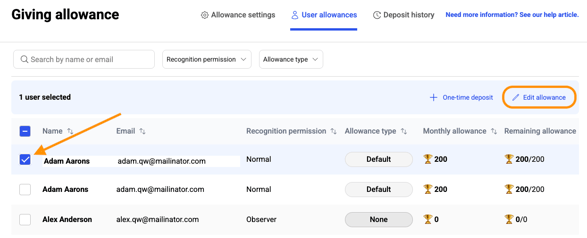
- Select one or multiple employees
- Click 'Edit allowance' to modify recognition permissions and allowance type
- Click 'One-time deposit' to add extra points for current cycle
- Click 'Save changes'
One-Time Allowance Deposits
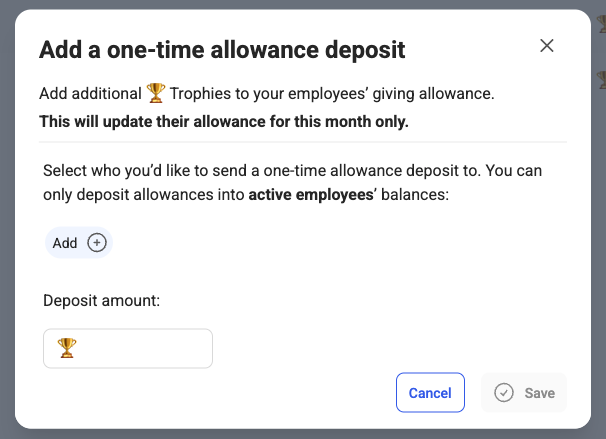
Deposit extra points to an employee's giving allowance for the current cycle only (refreshes next cycle):
- Click Recognition
- Click your profile picture, then Admin
- Select 'Allowances & balances' in the left navigation
- Click Giving allowance
- Click Deposit history, then select 'Deposit allowance'
- Add employees individually by name or group
- Set one-time deposit allowance amount
- Click 'Save'
Frequently Asked Questions
Can I adjust the exchange rate for individual employees?
By default, exchange rates are set by location. However, you can create custom allowance rules for specific individuals if needed.
What if an employee doesn't have a work location assigned?
They'll receive the default exchange rate, not any location-specific rate.