
Last Updated: June 16, 2026
In this article:
- Overview
- User Status Tabs
- Manually Invite Employees
- Update Employee Data
- Employee Profile Details
- Advanced Permissions
- FAQs
Note: As Assembly features are being incorporated into Quantum Workplace, some users may see a slightly different experience than what is described in this article. The content below reflects the Quantum Workplace Rewards & Recognition platform experience.
Overview
This article is for Assembly admins.
Manage employees in Assembly by inviting them, updating their information, assigning roles, and controlling their permissions. If connected to an HRIS, employees sync automatically; you can also manage them manually.
User Status Tabs
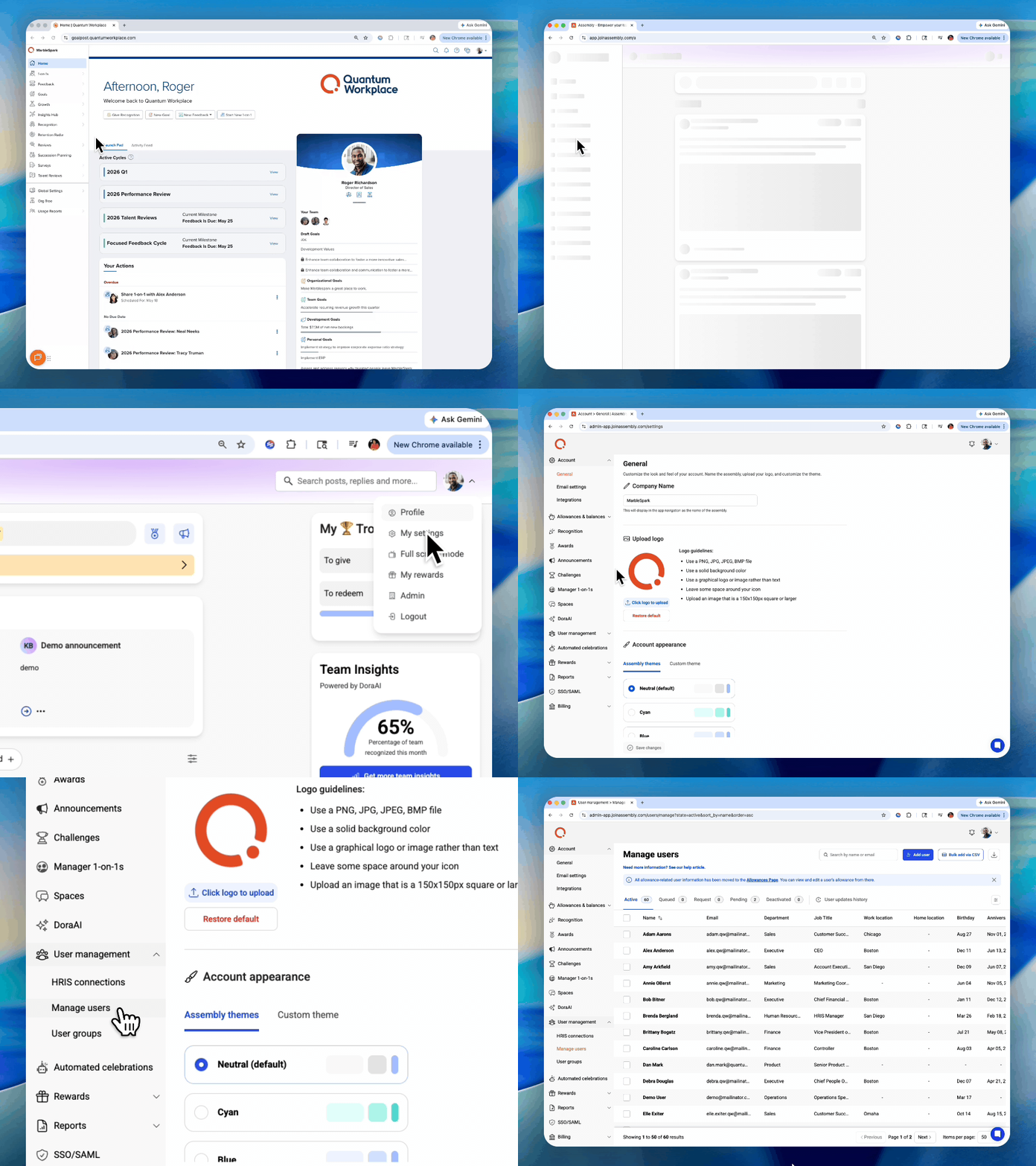
- Click Recognition
- Navigate to admin by selecting your profile icon, then click Admin
- Click 'User management' in the left sidebar within Assembly
- Click 'Manage users'
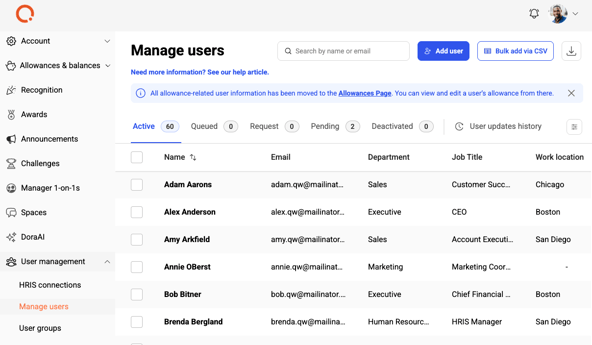
Active Tab
All currently active employees. Users become active when they accept their invite and log in for the first time.
Queued Tab (HRIS Only)
Employees waiting for admin approval to join (if your HRIS requires approval):
- Click the user or 'select all'
- Click 'Activate'
- Users move to the Active tab
Pending Tab
Invited employees who haven't yet accepted. They can accept by:
- Clicking the link in their invite email
- Logging directly into app.joinassembly.com and signing up
Manage pending users:
- Click 'Delete' to remove them (moves to Deactivated)
- Click 'Remind' to resend the invite
Deactivated Tab
Users no longer active in Assembly. To reactivate:
- Select the employee(s)
- Click 'Reactivate'
Manually Invite Employees
Invite One Employee
- Click Recognition
- Navigate to admin by selecting your profile icon, then click Admin
- Click 'User management' > 'Manage users' in Assembly
- Click 'Add user'
- Enter employee data
- Click 'Save'
- Employee receives invite and appears in Pending tab until they accept
Bulk Invite via CSV
- Click Recognition
- Navigate to admin by selecting your profile icon, then click Admin
- Click 'User management' > 'Manage users'
- Click 'Bulk add via CSV'
- Click 'Download CSV template'
- At minimum, enter employee emails (other fields optional but recommended)
- Save the CSV in CSV format
- Follow steps 1-4 above, click 'Upload CSV file'
- Review for errors (red) and mismatches (yellow)
- If no errors, click 'Yes, continue with upload'
- Employees appear in Pending tab
Update Employee Data
Manually Update One Employee
- Click Recognition
- Navigate to admin by selecting your profile icon, then click Admin
- Click 'User management' > 'Manage users'
- Select the employee
- Click 'Edit'
- Update relevant fields
- Click 'Save'
Bulk Update via CSV
- Click Recognition
- Navigate to admin by selecting your profile icon, then click Admin
- Click 'User management' > 'Manage users'
- Click 'Bulk add via CSV'
- Click 'Download CSV template'
- Enter employee emails (must match existing emails)
- Add updated values for fields you want to change
- Leave blank for fields you don't want to update
- Save and upload the CSV
- Review for errors and mismatches
- Click 'Yes, continue with upload'
Note: If connected to an HRIS, manually updated fields no longer sync with the HRIS.
Employee Profile Details
Job Title & Department
- Auto-populated from connected HRIS if available
- Can be manually added or updated
- Add new titles/departments by typing and clicking 'Add'
- Employees cannot update their own; controlled by HRIS or admins
Direct Manager & Direct Reports
- Auto-populated from connected HRIS
- Changes auto-sync if HRIS detects reports; manager role automatically assigned
- Manually designate by selecting from user list
- If manually updated, no longer syncs with HRIS
Hire Date & Birth Date
- Hire date: Date employee joined (or position change date if updating)
- Birth date: Month/day only (year not collected)
- Used for anniversary and birthday bot celebrations
- Employees can hide from profile; can exclude from birthday bot
- If manually updated, stops syncing with HRIS
Work Location & Home Location
- Work location: Office or work location affiliation
- Home location: City/state/country where employee lives
- Auto-populated from HRIS; if manually updated, stops syncing
Advanced Permissions
Admin Role
Grants full admin access and ability to perform most actions, including viewing private posts.
Manager Role
- Automatically assigned if HRIS detects direct reports
- Required for manager-specific features and reporting
- Can be manually assigned
Frequently Asked Questions
Can I change an employee's email address?
No. Email is the unique identifier. To change an email, you must deactivate the old user and create a new one.
What if an employee is in Pending but hasn't received their invite?
Click 'Remind' to resend the invite. Confirm the email address matches; they must log in with the email they were invited with.
Can employees update their own roles or permissions?
No. Only admins can assign roles and permissions.