In this article:
- Overview
- Requirements
- About Multi-Step Approvals
- How to Use Multi-Step Approvals
- How to Manage Multi-Step Approvals
Overview
Multi-Step Approvals allow admins to designate multiple approvers for performance reviews, creating a step-by-step workflow. This ensures the right people can review, provide feedback, and approve content in order—helping maintain consistency, accuracy, and visibility throughout the review process.
Requirements:
This feature is available to admins and focused admins with designated Reviews access.
About Multi-Step Approvals:
Think of Multi-Step Approvals as a stair-step approach to signing off on performance reviews. As an admin, you can set up a clear path for approvals—designating specific team members to review and approve feedback in a set order.
Important: Once an Approver is added, they are automatically granted access to the selected Review.
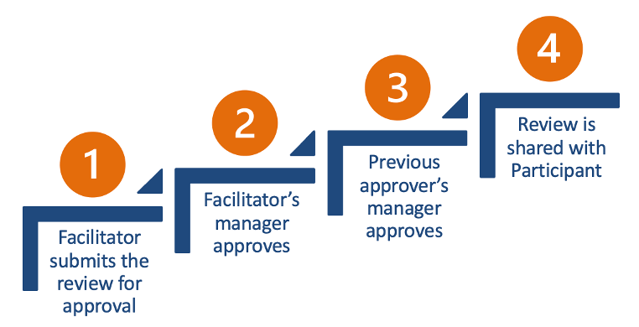
This option is especially helpful when reviews require input or approval from more than one person, like a direct manager, department head, or HR leader. This is useful for:
- Ensuring feedback aligns across leadership before it’s shared
- Catching inconsistencies or issues early in the process
- Supporting a collaborative approach to performance reviews
- Providing a clear audit trail of who approved and when
- Accommodating unique org structures or approval needs
Whether you're managing large teams, cross-functional reviews, or sensitive feedback, Multi-Step Approvals help keep the process structured, transparent, and aligned.
How to Use Multi-Step Approvals:
Multi-Step Approvals let you define who needs to review and approve a Performance Review before it’s shared. You can build this workflow by adding approvers manually or by importing them in bulk using a file.
A Guided Walkthrough
For a complete walkthrough of how to setup Multi-Step Approvals, take a look here:
How to Manually Add Multi-Step Approvals:
Adding Multi-Step Approvals can easily be done individually when setting up a Review cycle by the Approvals Workflow.
On the Cycle Setup page, clicking "Facilitators must 'Submit for Approval' before sharing" will expand the Multi-Step Approvals options, including the Manual option.

Follow this step-by-step guide to add Approvers manually:
How to Add Multi-Step Approvals via File Import:
Another way to set up Multi-Step Approvals is by importing approvers using a downloadable CSV template.
Learn how to do so here:
How to Manage Multi-Step Approvals:
Once you’ve added approvers—either manually or via file import—and selected participants for the review cycle, you can manage Multi-Step Approvals directly from the Participants step.
Learn how to do so here:
Changing the Facilitator and Approval Chain
If an approval step is based on the facilitator, changing the facilitator may change who is assigned to that approval step.
For example, if Approver 1 is configured as the facilitator's manager, changing the facilitator will cause the approval chain to be recalculated based on the new facilitator. As a result, the approver may change.
When the facilitator changes, all previous approvals are reset, and the review must be submitted again through the updated approval chain.
Note: Changing the facilitator does not necessarily change every approver in the approval chain. Only approval steps that are based on the facilitator, such as Facilitator's Manager, are recalculated.
Multi-Step Approvals Notifications:
Approvers receive notifications in multiple locations throughout the Multi-Step Approval process. Take a look at these examples of these notifications below!
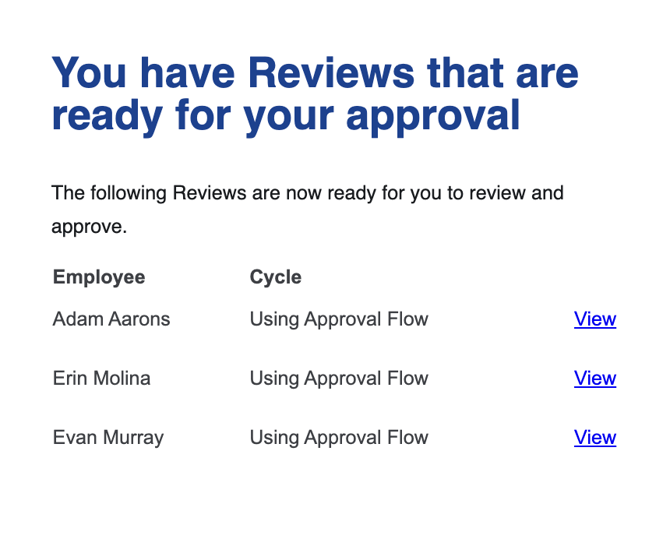
- Approvers receive email notifications when Reviews are waiting for their sign-off. Here's an example:
- When an Review is sent back at any stage with recommendations, a notification is emailed to the Facilitator including the reason for rejection, seen below:

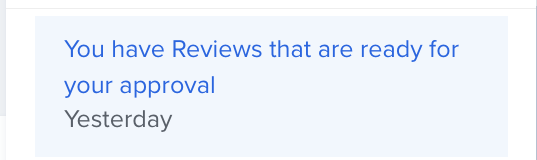
- Bell alerts will also appear for Approvers in the top right within Quantum Workplace. Clicking into these notifications will open the Approver's pending Reviews:
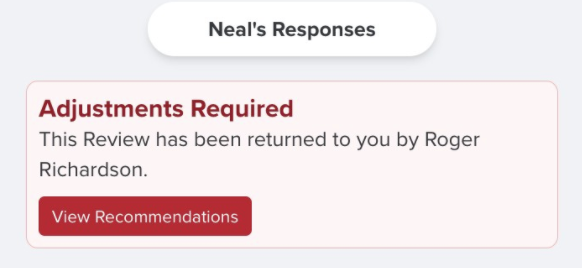
- When an Approver sends back a Review with feedback, the original Facilitator will receive a notification via email, and will also be able to look over the revision notes within the Review itself by clicking "View Recommendations":
- If enabled, Slack or Teams notifications would also alert for pending approvals and rejections.
Activity Log
The Activity Log within Multi-Step Approvals offers a time-stamped record of each action in the approval process, showing who approved or rejected a request and when. It ensures transparency, accountability, and a clear audit trail for every step.
To locate the Activity Log, click into it on the right of the Reviews landing page:

A modal will appear with a detailed record of actions occurring during the approval process, including time stamps:

Review Status
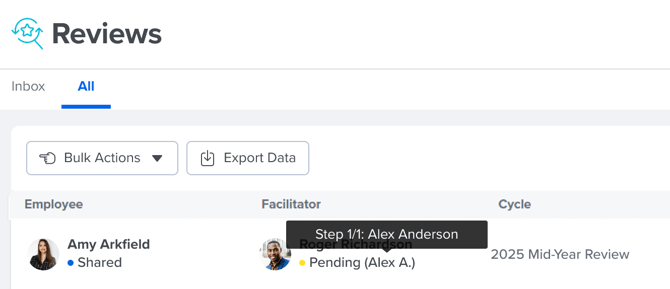
Reviewers can also track where a Review is in the approval process at any time from the All Reviews page, as shown below. Hover over the “Pending” facilitator text to view a tooltip showing the Review’s current stage in the multi-step approvals process.