
Last Updated: August 25, 2026
In this article:
- Overview
- Video Product Tour
- Before You Begin
- Navigating Insights Hub
- Setting Up Your First Topic
- The Overview Page
- Actions
- Chat with Cue
- Frequently Asked Questions
Overview
Insights Hub is Quantum Workplace's AI-assisted people insights experience. Rather than requiring you to build reports or cross-reference dashboards, Insights Hub uses Cue – powered by the intelligence behind Quantum Workplace - to monitor your organization's data and surface important findings on a regular cycle.
Cue analyzes your survey data to identify meaningful patterns and recommend next steps. It also considers activity across features like 1:1s, performance reviews, and talent reviews to add context to its insights.
The experience is organized around topics, which are focused areas of analysis like Manager Effectiveness or Top Talent Retention. Once a topic is set up, Cue analyzes the relevant data on a recurring schedule and adds new insights to the topic's stream over time.
HR administrators can monitor topics from the Overview page, track follow-through using Actions, and review Data Source Gaps to understand where to improve results.
Check out the video below for a tour of Insights Hub in Quantum Workplace.
Before You Begin
To set up and manage topics in Insights Hub, you need HR administrator permissions in Quantum Workplace. Interested in getting set up with Insights Hub? Contact your CSM to learn more.
Insights Hub analyzes survey data while also considering activity across Quantum Workplace, such as whether employees have had 1:1s, performance reviews, or talent reviews, to provide important findings for review. The more data available across your organization, the more complete Cue's insights can be.
Navigating Insights Hub
Select Insights Hub from the left navigation to get started.
You’ll see several options in the dropdown menu, including:
- Overview — the home base for insights. See all monitored topics, recent insights, active actions, and data coverage at a quick glance.
- Actions — track recommended actions across all your topics in one place.
- Administration — determine and manage your topics. If you're just getting set up with Insights Hub, you’ll start here.
Set Up Your First Topic
Setting up a topic tells Insights Hub what to monitor and gives Cue the context it needs to tailor its analysis to your specific organization.

To set up a topic:
- Select Insights Hub in the left navigation.
-
Choose Administration from the dropdown menu.
-
Select Set up your first topic to begin.
- Select a topic from the following options for Cue to monitor:
- Manager Effectiveness — analyzes signals related to how managers support, develop, and engage their teams. Draws from engagement data, 1:1s, recognition, performance reviews, and more.
- Create a Custom Topic if you want Cue to focus on a specific area not covered by the built-in library. Custom topics are built through a guided conversational setup with Cue.
- Follow the prompts to configure your topic.
-
For built-in topics, Cue starts with a foundational analytical perspective for that subject developed by Quantum Workplace’s subject-matter experts. It will ask whether this matches how your organization thinks about the topic.
Then, you have three options to choose from:
- If it matches your point of view, simply confirm it to move forward.
- If it's close but not complete, you can add additional guidance, like specific behaviors or signals that are important to your organization.
- If it's different for your organization, describe your perspective and Cue will incorporate it.
Your input shapes the lens Cue uses for all future analysis on this topic. After you offer guidance, Cue will summarize what it heard and ask you to confirm before finalizing.
-
- Review the summarized the topic configuration and click Activate to begin monitoring the topic.
- Monitor your topic under Tracked Topics on the overview page.
A note on context: When setting up a topic, you don’t need to share data or information Cue can already access within your Quantum Workplace instance.
Instead, upload context that Cue wouldn’t otherwise know—such as documented values, leadership expectations, or current business priorities. This helps Cue better understand what matters to your organization so that you get more relevant and meaningful insights.
Note: Insights are usually ready the same day. Cue begins its first analysis cycle after setup is complete, and timing depends on the volume of data available. Check back in later to see your first insights.
The Overview Page
The Overview page is your home base in Insights Hub. It summarizes activity across all your monitored topics and gives you direct access to actions and data coverage information.
Summary Cards
Two cards at the top of the page provide an at-a-glance view of your Insights Hub activity:
- Topics Monitored — the number of topics currently active for your organization.
- Insights (last 30 days) — the number of insights generated in the last 30 days. The indicator below shows how this compares to the previous period.
Tracked Topics
The Tracked Topics section shows a card for each monitored topic. Each card displays the topic name and category, the number of new insights from Cue within the last 30 days, and an associated status of each topic. Select a topic card to open its insight stream and see the full findings.
Note: The insights page for a topic shows published findings newest-first. You can filter by date range — the default view shows the last 30 days.
Actions
Recommended actions are follow-up steps that Cue generates for each insight. Each action is tailored to the specific finding it accompanies, providing clear, actionable guidance to help you address the insight.
Finding and Adding Actions
Actions are suggested and added from an individual topic’s page. When Cue generates recommendations for a topic, they appear on the right side where you can select an action, and add it to your tracked list.
Once added, actions appear in the dedicated Actions page (accessible from the left navigatio) as well as in the Actions panel on the Overview page.
Tracking Action Status
The Actions page organizes your follow-through with three status filters:
- New — actions that have been added but not yet started.
- In Progress — actions you are actively working on.
- Complete — actions that are finished.
Update an action's status as you work through it to keep your list accurate. You can manage owners, due dates, and status updates all from the Actions page.
Note: Completing an action in Insights Hub records your follow-through within the hub itself. It does not automatically update other tools or systems outside of Insights Hub.
Cue also identifies areas where you can improve coverage to return stronger, more complete insights over time in Data Limitations within each insight.
View details within data limitations to see the recommended next step for improving coverage. Addressing gaps tagged as High Impact first will have the greatest effect on your insight quality.
Chat with Cue
Insights are a starting point for deeper exploration. After Cue surfaces valuable insights, you can chat with Cue to ask follow-up questions about what it found and discuss what the findings mean for your organization.
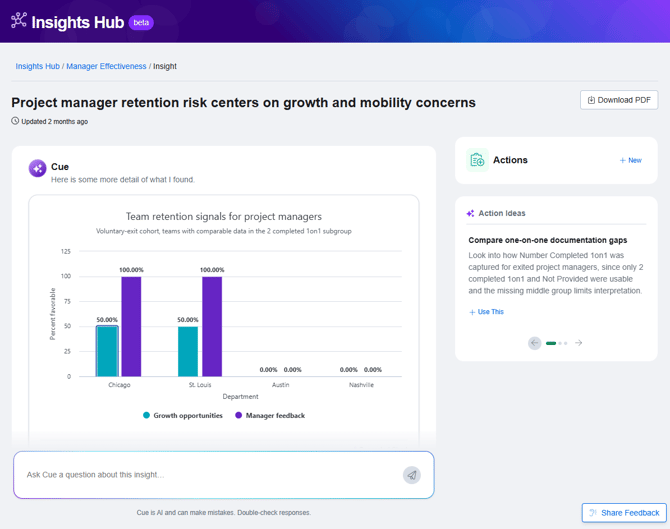
From an individual insight, ask Cue to:
- Clarify a finding or explore what's driving a specific result
- Add context or compare the finding to other groups within your organization
- Explore what you might focus on next to drive results
Cue uses the context and data behind the insight to help answer your questions, so you can continue exploring a finding without leaving the insight.
Conversations allow you to explore the findings deeper by diving into the data behind the results. Cue retains your chat history within the insight between sessions, so you can pick up where you left off.
Your conversation is saved to the insight itself and is private to you. Other HR administrators viewing the same insight have their own separate conversation with Cue.
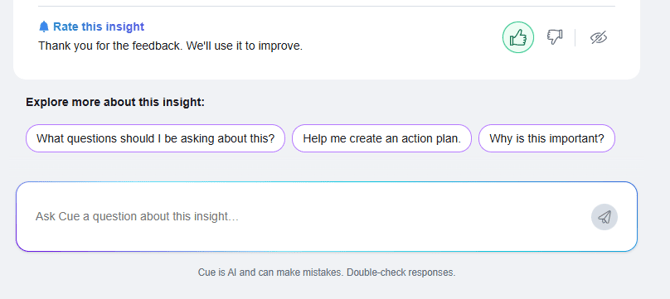 To chat with Cue:
- Select Insights Hub in the left navigation.
- Choose Overview from the dropdown menu, then select the topic you want to review.
- Select an insight from the topic's stream to open its detail page.
- Within the insight details, choose from suggested questions or create your own to chat directly with Cue.
Frequently Asked Questions
-
Why are there no insights yet after I set up a topic?
-
Cue needs time to complete its first analysis cycle after setup. We recommend setting up Insights Hub and checking back later that day. Insights will appear in the topic's details once the first cycle is done. You’ll also be notified via email when new insights are ready for review.
-
-
What is Cue?
-
Cue is the intelligence behind Quantum Workplace. Built directly into Insights Hub, it monitors the data flowing through your organization, investigates patterns tied to your topics, and surfaces clear findings and recommended actions.
-
-
Will my follow-up conversation with Cue be visible to other admins?
-
No. Follow-up conversations are private to you. Even when multiple HR administrators are viewing the same insight, each person has their own separate conversation thread with Cue for that insight.
-
-
Can I edit a topic after setup?
-
Yes. From the Administration page, locate the topic you want to update and select Refine Topic. You can update your organization's guidance, and your changes will be used in future analyses. They won't affect insights that have already been generated. From the same page, you can also pause or archive a topic.
-
-
What is the difference between a built-in topic and a custom topic?
-
Built-in topics, such as Manager Effectiveness, come with a pre-determined foundation that you can personalize to your organization. A custom topic is one you define from scratch with Cue's help, useful when you want to monitor an area that is more specific to your organization's priorities. If you’re just getting started, we recommend beginning with a built-in topic.
-