
- Overview
- Who Growth Cycles Are Best For
- How to Get Access
- What's Included
- How to Create a Growth Cycle
- Running Concurrent Growth Cycles
- Growth Plan History and Tracking
- Employee Experience of Growth Cycles
- Tracking Cycles
This feature is currently in Beta. We welcome customer feedback on how it meets your needs.
Overview
Growth Cycles help organizations drive stronger Growth Plan adoption by setting clear timelines and automating reminders throughout the planning process. By reducing the administrative workload, Cycles removes barriers to getting started and supports employees in building, sharing, and reflecting on their Growth Plans.
Who are Growth Cycles best for?
Growth Cycles will benefit organizations that:
- Want to drive widespread Growth Plan adoption
- Need clearer timelines and expectations for employees and managers
- Want to reduce manual follow-ups and administrative work
- Use annual or otherwise structured Growth planning rhythms
Growth Cycles are especially effective for organizations running annual Growth Planning cycles, though cycle length is customizable.
How do I get access?
If you’re interested in utilizing Growth Cycles, reach out to your Customer Implementation Manager or Customer Success Manager for support in getting started.
What’s included in Growth Cycles
Accessing Cycle Management
Cycle Management is available from Growth Administration under the Cycles tab.
From there, admins can create, review, and launch Growth Cycles.
How to Create a Growth Cycle
- In the left-hand navigation, expand Growth
- Select Administration
- Select Cycles
- Click Create your first cycle
New cycles are automatically saved as drafts until launched.
To create a Cycle:
1. Configure Settings
When creating a cycle, admins define the bounds of the cycle, not access to Growth itself. Growth Plans remain available to employees who are granted access (in Global Settings > Users) at all times.
You’ll configure:
- Cycle name (for example, [ORG NAME] 2026 Growth Planning)
- Start and end dates
- Cycles must be at least one month long
Most organizations use annual cycles
- Cycles must be at least one month long
- Share-by date
- Typically set within the first few weeks of the cycle
- Used to drive accountability and trigger reminders
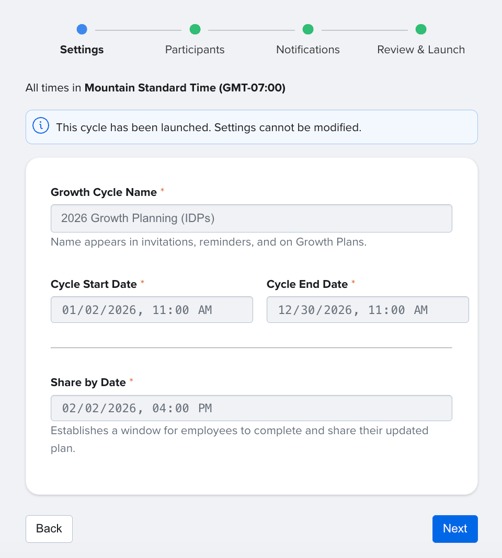
Note: All dates and times are set based on the cycle creator’s local time zone. That is, a cycle start date set for 10:00 AM Central time will launch at 10:00 AM Central and 11:00 AM Eastern.
2. Add Participants
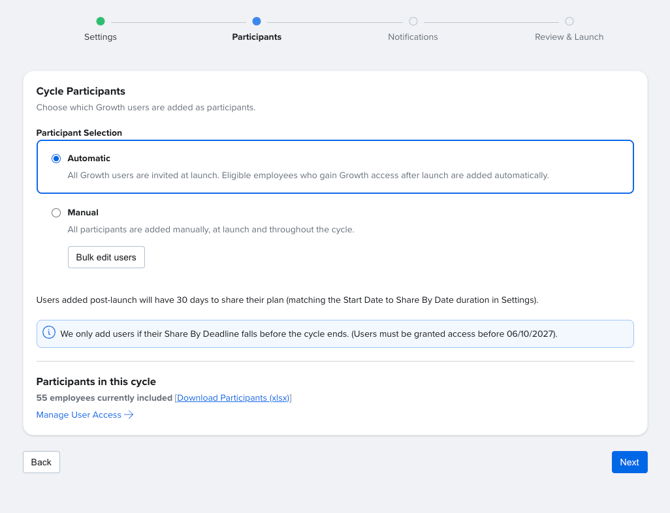
Automatic
All users with Growth access are automatically included in the cycle when this option is selected. Eligible employees who gain access will also be automatically added.
Manual
Manual participant selection lets you define exactly who is included in a cycle using a file upload. This can be useful when targeting a specific group or opting for an alternate cadence.
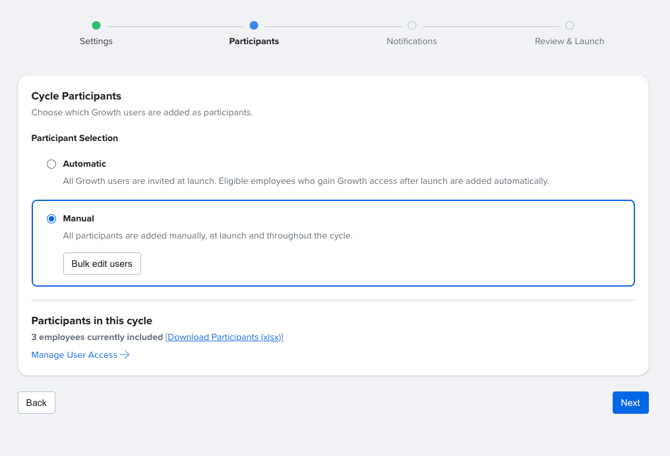
To add participants manually:
- When creating a new cycle, select Manual under Participants
- Download the current Growth User file
- Open the file, and set each column to "Add" for every participant you want to include in the cycle
- Save the file
- Click Browse and select your updated file
- Click Upload, and review the changes (for example, "10 users added")
- Click Finalize
Note: Manual participant selection determines who is in this specific cycle — it does not affect a user's overall Growth access. To update who has Growth access, click Manage User Access to go to User Management.
The screen lists how many employees will be included in the cycle based on current user access. You may also download the Participant list on this screen to review who currently has access.
To update Growth permissions, click “Manage User Access”, which will direct you to the User Management screen where you can add Growth permissions to users who should be included in the cycle.
3. Review Notifications
Growth Cycles include built-in notifications to support employees and managers at key moments without administrative lift. Notification timing and content are preset and align with Growth best practices.
Employee notifications include:
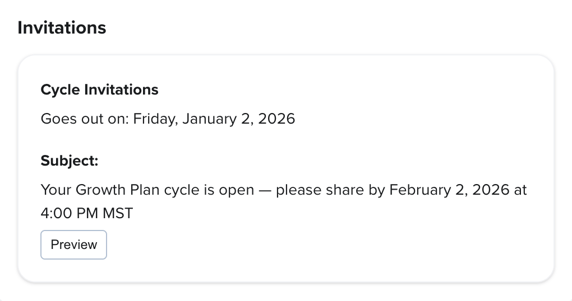
- An invitation email at cycle start explaining the purpose and value of Growth
- A reminder sent 2 days before the Share-by date if a plan has not yet been shared
- A reminder sent 2 weeks before the cycle end date to reflect on progress and update plans
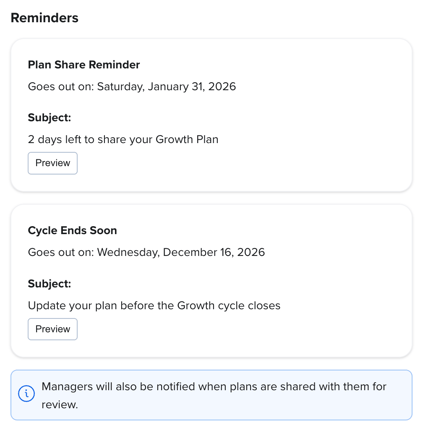
Manager notifications include:
- A notification when a direct report shares their Growth Plan
Admins can preview notification content during setup.
4. Review & Launch
Before launching:
- Review all cycle settings
- Save the cycle as a draft
- Schedule the cycle for launch
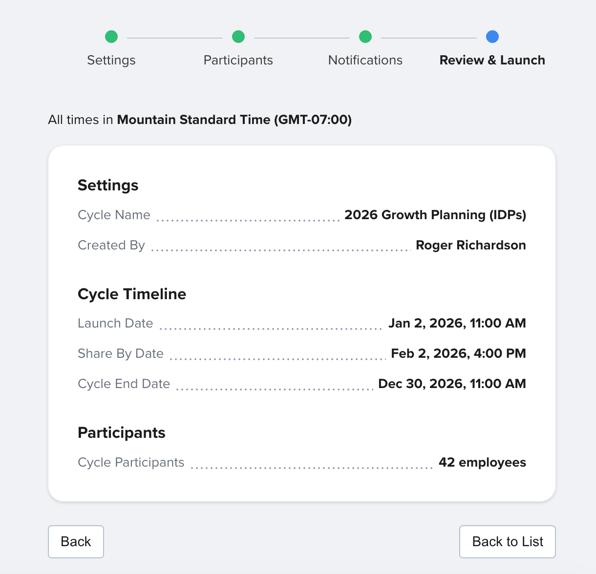
Important: Once launched, the cycle becomes active based on the selected start date and cannot be edited. If you need to delete a cycle after its start date, please reach out to Customer Support.
Running Concurrent Growth Cycles
You may run more than one Growth Cycle at the same time, which can be useful for different groups in your organization that require separate development tracks or cadences.
For example, some organizations opt to run a leadership-focused cycle along an individual contributor cycle for the rest of the team.
Each cycle is created and managed independently, and participants in one cycle are not automatically enrolled in others.
Note: Each participant can only belong to one active cycle at a time. If you want to add a participant to a new cycle, make sure they are not currently enrolled in another active cycle.
How to Set Up Concurrent Cycles
- Create your first cycle using manual participant selection.
- Add the participants via file upload, then schedule the cycle.
- Return to Growth Admin, and click Create New Cycle.
- Set up your second cycle, selecting a different set of participants using the same file upload workflow.
Once scheduled, both cycles appear in your Cycles list and can be tracked independently.
Growth Plan history and tracking
Growth Cycles automatically capture historical records of Growth Plans to help track progress over time.
- A historical record of each Growth Plan is captured before the cycle begins and at the end of the cycle
- Historical records reflect the plan exactly as it existed at the point in time it was captured
- Historical records cannot be edited
Employees can view past plan records by selecting Plan History from their current Growth Plan.
Employee experience within a Growth Cycle
When employees enter Growth during an active cycle, they’ll see a welcome experience tailored to where they are in their journey:
-
First-time users receive step-by-step guidance to build their first Growth Plan.
-
Returning users can choose to carry over some or all of their existing plan content, or start fresh with a new plan.
At the start of each new cycle, returning users will also be prompted to review and refresh their Career Vision. Keeping it up to date ensures their Growth Plan reflects their current goals and unlocks more relevant, personalized guidance from AI Coach.
Note: A user’s Career Vision always carries over into a new cycle. Career Visions typically remain relevant over longer periods, but employees are encouraged to review and update them at the start of each cycle to ensure Career Coach suggestions remain accurate.
Sharing behavior at cycle start
At the beginning of each cycle:
- Any Growth Plan that was previously shared with a manager automatically reverts to an unshared state
- This allows employees to privately draft updates before re-sharing
- It also enables admins to accurately track sharing activity within the cycle
Building and sharing plans
After completing the welcome screen, employees can begin building their Growth Plan.
- The Share-by date is clearly displayed for visibility and accountability
- Employees can update, reflect, and re-share plans as part of the cycle
Tracking Cycles
Admins and managers will be able to track employee progress within the cycle on the Team Plans and Team Insights page. The status charts and graphs always reflect what is true on current cycles.
We recommend that admins or managers check plan statuses just after the share-by date, so that they can filter to users who have not shared their plans and send an encouraging “nudge” reminding them to take action.