
Last Updated: October 22, 2026
In this article:
- Overview
- Enable Recognition QR Codes and Links
- Using QR codes and links internally
- Customize the External Recognition Experience
- Share an Employee's QR Code or Recognition Link
- Create a Group Recognition QR Code or Link
Overview
Recognition QR codes and shareable links give people a quick way to recognize an employee or group of employees.
Employees can use them internally—for example, deskless workers can scan a code displayed on-site to recognize a coworker. When external recognition is enabled, customers, visitors, and others outside your organization can also use them to share appreciation.
Admins can choose who has access to QR codes and links, enable external recognition, customize the external recognition experience, and manage whether external submissions require approval.
Enable Recognition QR Codes and Links
- Navigate to Administration > Recognition > QR Codes & Links.
- Turn on Recognition QR Codes and links.
- To also allow people outside your organization to recognize the selected employees, enable the external recognition option.
- Choose who can access recognition QR codes and links. You can select:
- Everyone
- Specific employees
- Custom user groups
- Save your changes.
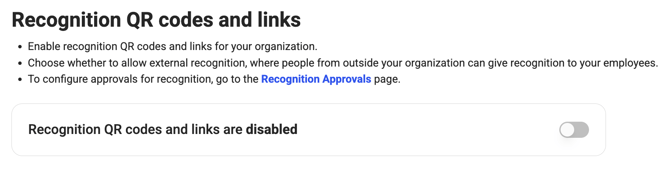
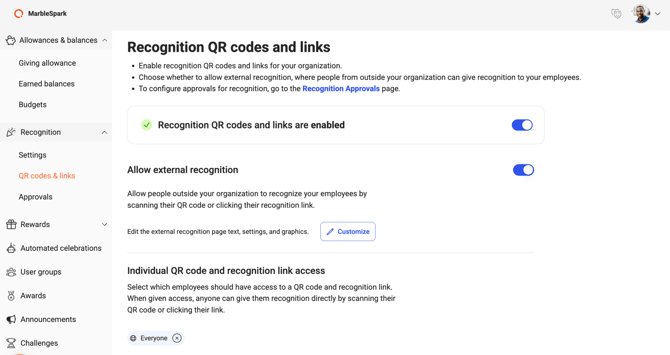
Note: User groups must already be created to appear as an option.
Using QR codes and links internally
Employees should sign in before scanning a QR code or opening a recognition link to recognize coworkers as members of your organization.
If external recognition is also enabled, employees who are not signed in will go through the external recognition experience—even if they belong to your organization. They must be signed in for the system to identify them as employees.
Customize the External Recognition Experience
You can customize the experience external individuals see when they scan a QR code or open a recognition link.
- From the External Recognition settings, select the option to customize the experience.
- Enter a custom message or prompt, such as "Say thanks to your favorite barista!"
- Choose from the available symbolic recognition options.
- Save your changes.

Symbolic recognition options allow external individuals to share a fun gesture, such as a high five or confetti celebration. These options do not award points or have a monetary value.
Share an Employee's QR Code or Recognition Link
Employees selected for recognition QR code and link access have a unique QR code and recognition link available from their profile.
To access and share a code or link:
- Open the employee's profile.
- Locate their recognition QR code and link.
- Choose to:
- Download the QR code to print or display it.
- Copy the recognition link to share digitally.
Share the QR code or link so coworkers can quickly recognize the employee. If external recognition is enabled, people outside your organization can also submit recognition without signing in.
Create a Group Recognition QR Code or Link
Create a shared QR code or recognition link for a group of employees. For example, display a code on-site so deskless workers can recognize coworkers, or share a team’s code with customers when external recognition is enabled.
- Navigate to Administration > Recognition > QR Codes & Links.
- Create a recognition group.
- Enter a name for the group.
- Select the employees to include.
- Choose whether external individuals can recognize one or multiple employees.
- Save the group.
- Download the group's QR code or copy its recognition link.
When someone opens the group's link, they can select the employee or employees they want to recognize before submitting their recognition.
What Happens When Someone Submits External Recognition?
When someone uses the external recognition experience, they can complete a recognition form and submit their appreciation without signing in.
Depending on your organization's approval settings, the recognition will either:
- Be submitted for approval before appearing in the Recognition feed.
- Be posted automatically without requiring approval.
When an approver reviews an external recognition submission, they can add points, associate a core value, and choose whether the recognition should be visible to everyone or remain private.
Recognition submitted through the external recognition experience identifies the giver as someone outside the organization, including employees who submitted while signed out.
For more information, see Manage Recognition Approvals.