
In this article:
- Overview
- Important Requirements
- When to Import Scores
- How to Import Scores into Reviews
- Analytics
- FAQs
Overview
Importing scores into a Performance Review can save time, reduce administrative work, and help reflect finalized outcomes in the review experience.
Importing scores into Performance Reviews requires intentional configuration and timing. This article outlines when importing is supported, what to keep in mind, and best practices to ensure the import is successful.
Learn How to Import Scores Into 1-on-1s here.
Important Requirements
Descriptive Scoring – Overall Score
Your Descriptive Scoring – Overall Score setting determines whether importing scores is supported a Performance Review cycle.
If Descriptive Scoring – Overall Score is disabled/OFF:
- Importing scores is supported, with important timing considerations.
If Descriptive Scoring – Overall Score is enabled/ON:
- Importing scores into Performance Reviews is not supported.
- Any imported score will be overridden when actions such as sharing or approving the review occur. Notably, actions taken to finalize reviews will not be overridden.
⚠️ Do not import scores when this Descriptive Scoring – Overall Score is ON. This configuration will override imported scores and may cause rework.
When to Import Scores
Once Descriptive Scoring – Overall Score is OFF, imported scores behave as follows:
Actions That Do Not Affect Imported Scores
Once scores are imported, the following actions do not impact the imported score:
- Approving the review
- Sharing the review
- Finalizing the review
Actions That Do Affect Imported Scores
Once scores are imported, the following actions DO impact the imported score*:
- Changing the review facilitator
- Any other revisions
*Note: the imported score will revert and must be re-imported.
Best practice: Import scores only when you are confident the review will not be sent back for revisions.
How to Import Scores Into Performance Reviews
Follow the steps below to import final scores into a Performance Review cycle, making sure to review the configuration and timing guidance earlier in this article before proceeding.
Import Steps
- Navigate to Performance Reviews, then select Administration.
- Click into a Single Review Cycle.
- Choose the Performance Review cycle where you want to import scores.
- Click + Advanced in the top-right corner.
- Select Import Scores.
- Click How will this look in reviews? to preview how imported scores will appear.
- Enter a sample Rating and Description to preview the format.
- Review the preview to familiarize yourself with how scores will display in the review.
- When ready, click Download Sample to download the CSV template.
- Click Next once the sample file has downloaded.
- In the CSV file:
- Enter scores (highlighted in yellow)
- Enter descriptions (highlighted in green)
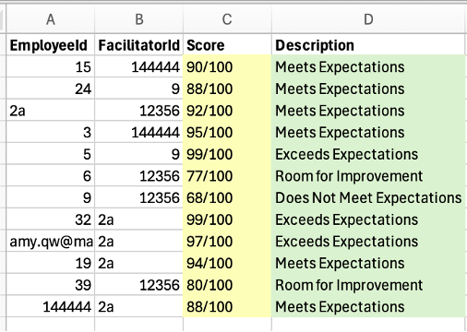
For best results, complete both the Score and Description columns. You may import only scores or only descriptions if needed.
Scores can be entered in the format that works best for your organization, including:
- 90
- 90/100
- 4/5
- 90%
- Save your changes, then click Browse… to locate your file.
- Upload the file.
- If an error occurs due to invalid data, click Download Error Details to review what needs to be corrected.
- Fix any errors in the file, save it, and upload again using Browse….
- Click Upload and Validate.
- If successful, a confirmation banner will appear showing the number of scores detected.
- Click Assign scores to X reviews to complete the import.
- When the import is complete, select Back to Cycle or Import Another File.
- To view the imported scores, open Performance Reviews and select the cycle.
- The imported score and description will appear at the top of each Performance Review.
Analytics
- Imported overall scores do not appear in analytics.
- This applies to both Performance Reviews and 1-on-1s.
If analytics reporting is required, consider entering scores directly within the review instead of importing them.
FAQs
Why was my imported score overridden or removed?
This typically occurs when:
- Descriptive Scoring – Overall Score is enabled, or
- The review was sent back for revisions after importing scores.
Can I re-import scores if they revert?
Yes, as long as Descriptive Scoring – Overall Score remains OFF.
Need Help?
If you’re unsure whether your Performance Review configuration supports importing scores, contact Support before importing. We’re happy to help you confirm your setup and avoid unexpected changes.