
Last Updated: June 16, 2026
In this article:
- Overview
- Requirements
- Getting Started
- Adding Swag Items
- Understanding Points and Swag Cost
- Enabling Custom Swag
- Managing Swag Items
- Order Management
- How Employees Redeem
- Important Notes
- FAQs
Overview
This article is for Assembly admins.
Custom swag is a flexible option to offer company merchandise to employees without needing an Axomo or Covver account. You manually add inventory and handle fulfillment yourself.
Requirements
- Only admins can set up custom swag rewards
- When enabled, all employees can redeem
Note: You can only have one swag rewards offering. You cannot combine Axomo, Covver, and custom swag.
Getting Started
- Navigate to your admin page in Assembly by clicking here
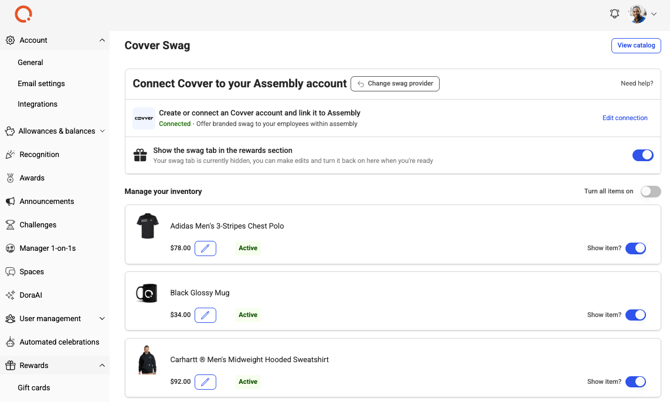
- Select Rewards > Swag
- Select 'Custom'
Adding Swag Items
- Click 'Add swag item'
- Enter the item name, description, and category
- Enter the cost in USD (we convert this to points based on your exchange rate)
- Upload an image
- Select whether the item has variants (sizes/colors) or not
- Single variant: One size/color only
- Multi-variant: Multiple sizes and/or colors
- Enter available quantity (leave blank for unlimited)
- Optionally, enter the SKU from your external vendor
- If multi-variant, click 'Add variant' for each size/color option
- Click 'Save'
Understanding Points and Cost
- Custom swag items don't have a monetary cost to Assembly; you cover all costs
- We ask for USD cost so we can convert it to points
- Example: $1 = 10 points (default). A $10 swag item costs 100 points
- If you have exchange rates for different locations, the point cost adjusts for each employee's rate
- When redeemed, points are deducted from the employee's balance; you handle fulfillment
Enabling Custom Swag
- Navigate to your admin page in Assembly by clicking here
- Select Rewards > Swag
- Next to 'Show the swag page in the rewards catalog', turn the toggle on
- All enabled items are now visible to employees
Managing Swag Items
Edit Items
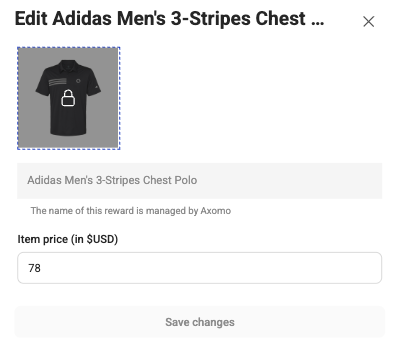
- Find the item in your inventory
- Click the edit icon
- Update any details
- Click 'Save'
- If quantity is 0, the item shows as out of stock
- Increase quantity to restore availability
Turn Items On/Off
- Navigate to your admin page in Assembly by clicking here
- Select Rewards > Swag
- Toggle individual items on or off
- Use 'Turn all items ON' or 'OFF' to manage all at once
Disable Custom Swag
- Navigate to your admin page in Assembly by clicking here
- Select Rewards > Swag
- Next to 'Show the swag page in the rewards catalog', turn the toggle off
Order Management
[Screenshot: Swag order management table]
When orders are redeemed, they appear in the 'Order management' tab:
- Navigate to your admin page in Assembly by clicking here
- Select Rewards > Swag
- Click 'Order management'
- Click an order number to view details
- Once you've fulfilled the order, click 'Mark as fulfilled'
- To cancel and refund, click 'Cancel and refund' (points refunded immediately)
Automated Fulfillment (Optional)
You can automate order fulfillment using our webhooks and API:
- Receive Orders: Use webhooks to get order details when employees redeem
- Process: Handle the order with your vendor
- Mark Complete: Use our Custom Swag Fulfillment API to update the order status in Assembly
See our API documentation for webhook setup and fulfillment endpoint details.
How Employees Redeem
- Go to app.joinassembly.com
- Click 'Rewards' in the left menu
- Select 'Swag'
- Select the item you want
- Choose size/color if applicable
- Enter shipping details
- Optionally, use swag points if enabled
- Click 'Place order'
- Your admin will fulfill and ship
Important Notes
- Employees cannot combine multiple items in one order; they must place separate orders
- Swag points can be combined with regular points if enabled
- Fulfillment and shipping are entirely your responsibility
- You're responsible for all associated costs
Frequently Asked Questions
Can I set unlimited quantity for a swag item?
Yes. Leave the quantity field blank and it will be unlimited.
Can employees return or exchange swag?
That's up to you. Manage returns outside of Assembly and refund points manually if needed.