
Last Updated: June 24, 2026
In this article:
- Overview
- Requirements
- Adding Custom Gift Cards or Charities
- Managing Custom Gift Cards and Charities
- Fulfillment and Management
- How Employees Redeem
- FAQs
Overview
Custom gift card and charity rewards let you add additional gift card and charity options to your catalogs that currently are not provided by Assembly’s gift card and charity vendors.
These rewards will live within the gift card and charity catalogs, respectively, but they will function like culture rewards: unlike the regular gift card and charity redemptions, Assembly does not charge you for custom gift card or charity redemptions.
These will work like culture rewards where you (admins) are responsible for fulfilling the gift card purchase and charity donation directly.
Requirements
- Only admins can set up custom gift cards and charities
- When enabled, all employees can redeem, just like regular gift cards and charities
Adding Custom Gift Cards or Charities
- Navigate to your admin page in Assembly here
- Select Rewards > Gift cards, or Charitable donations
- Click 'Add custom gift card/charity’
- Enter the reward name, select which country and currency the award is in
- Upload an image for the reward
- Enter the fulfillment timeline (the timeframe they can expect to receive the reward after redeeming it)
- Add the vendor URL (the URL where you go to purchase the gift card or make the charitable donation)
- Input the reward denominations
- Add an optional description to explain more about the gift card or charity
- Click 'Save'
Choosing country & currency
All gift cards and charities must be attributed to a specific country and currency
- Choosing a country will automatically determine the currency based on the country
- The custom gift card and charity will automatically appear in the reward catalog within the selected country, just like regular gift cards and charities
Fulfillment timeline
- Because you are manually fulfilling these custom gift card and charity rewards, we ask you to provide a timeline as to when your employees can expect to receive their gift card, or when the donation will be completed
- This timeline can be anything you want, i.e., ‘1-2 working days’, ‘Within 1 week’, etc.; we will surface it to your employees when they are redeeming the custom reward so they know it will take some time
Fulfillment timeline
- Because you are manually fulfilling these custom gift card and charity rewards, we ask you to provide a timeline as to when your employees can expect to receive their gift card, or when the donation will be completed
Vendor URL
- This is the direct URL shortcut your admins will see during fulfillment, where they can easily go directly to purchase the gift card or make a donation
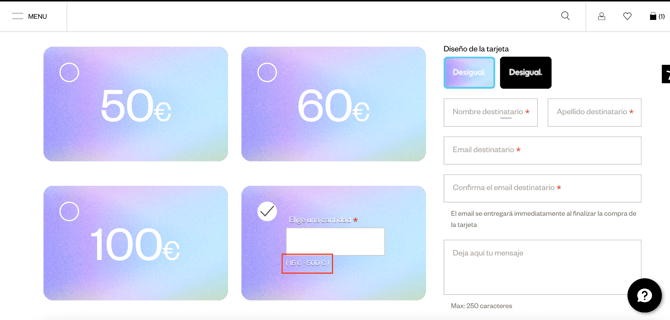
- For example, if you wanted to add Desigual in Spain, you could include this URL: https://www.desigual.com/es_ES/tarjeta-regalo-desigual-2/
- This URL will take you directly to the purchase page
Denominations
- Most vendors provide ranges for how much you can purchase a gift card for or amount you can donate, less frequently,, vendors may have fixed amounts where you can only select specific denominations (i.e., you can only select 5, 10, 25, 50, 100 Euro amounts)
- For example:
- In the Desigual example above, you’ll notice you can input any amount between 15-500 Euro
- You would select ‘Range’ and input 15 as the minimum, and 500 as the maximum
- As we do for regular gift cards and charities, when your employees redeem a custom gift card or charity, they will see options within the dropdown to select an amount within this range
Description
- Descriptions are totally optional; you can use the description to explain how the gift card/charity redemption works, or just general information about the reward itself
- Your employees will see this in the redemption modal when they go to redeem the custom gift card or charity
Enabling Culture Rewards
- Navigate to your admin page in Assembly here
- Select Rewards > Culture
- Next to 'Show in rewards catalog?', turn the toggle on
- This displays all enabled culture rewards to your employees
Managing Custom Gift Cards & Charities
Edit Custom Gift Card or Charity
- Find the reward in your inventory
- Click the edit icon
- Update any details you'd like to change
- Click 'Save'
- If you would like to delete the reward, click ‘Delete this reward’
- If you have any pending fulfillments, you must fulfill or cancel them before you can delete the reward
Turn Individual Custom Gift Cards and Charities On/Off
- Find the reward in your inventory
- Toggle individual reward on or off
- NOTE: if you are viewing the custom gift cards/charity filter, clicking ‘Activate all’ or ‘Deactivate all’ will only apply to the custom gift cards/charities
- If viewing the ‘All types’ filter, clicking ‘Activate all’ or ‘Deactivate all’ will apply to ALL, including custom gift cards or charities
Fulfillment and Management
All custom rewards fulfillment (custom gift cards, charities, swag, and culture rewards is managed from the ‘Custom reward fulfillment’ page in admin. Whenever a custom gift card or charity (or swag or culture reward) is redeemed, it will appear in this table for easy management.
- Navigate to your admin page in Assembly here
- Select Rewards > Custom reward fulfillment
- Click a redemption ID to open the order details
- Click the URL to navigate to the gift card or charity website
- Purchase and send the gift card to the employee, or make the charitable donation on behalf of the employee
- Mark the order as fulfilled
- For custom gift cards, the employee will not receive an email notification when you mark it as fulfilled, as they will already receive the reward directly once you fulfill it
- For custom charities, the employee will receive a confirmation email notifying them the donation has been made
- If you need to cancel, click 'Cancel and refund' (points immediately returned to employee, and employee is notified via email of the cancellation)
How Employees Redeem
Employees will redeem custom gift cards and charities the same way they redeem regular gift cards and charities. There will be no difference in the redemption experience, only in the timeline with which they receive the gift card or confirmation that the charity donation has occurred.
Click Recognition in Quantum Workplace
- Click 'Rewards' in the left navigation in Assembly
- Select 'Gift cards’ or ‘Charities'
- Select the reward you want
- Follow the steps to choose and submit
- Click 'Redeem'
- The employee will receive a confirmation email saying their reward is pending fulfillment
- Admins will also receive an email informing them there is a new reward pending approval
- Your admin will fulfill the reward
- For custom gift cards, the gift card will be sent directly to you from the vendor
- For custom rewards, your admin will make the donation on your behalf
Frequently Asked Questions
How am I billed for custom gift cards and charities?
Assembly will not bill you for any of these reward redemptions. Since you (admins) are responsible for purchasing the gift card from the vendor, or making the donation directly with the charity, those charges will be managed by your own payment process. Assembly will only deduct the points from the employee’s earned balance upon redemption. All custom gift card and charity redemptions will appear in the Order History page.
How will my employee receive their custom gift card?
As noted above in the fulfillment section, once the admin goes and physically purchases the digital gift card online; for most vendors they can enter the employee email as the recipient and it will be sent directly to them upon successful checkout.
How do I fulfill a custom charity redemption?
As noted above in the fulfillment section, similar to custom gift cards, the admin will make the donation directly on the charity’s website, on behalf of the employee. When the admin marks it as fulfilled in the management table, we will send the employee who redeemed an email informing them that the donation has been completed.
What if I need to cancel a redeemed custom gift card or charity?
Go to the Reward fulfillment tab, click the order, and click 'Cancel and refund'. Points are immediately returned to the employee's earned balance and they receive a cancellation email informing them of this..