
Last Updated: June 16, 2026
In this article:
- Overview
- Requirements
- Adding Culture Rewards
- Enabling Culture Rewards
- Fulfillment and Management
- How Employees Redeem
- FAQs
Overview
This article is for Assembly admins.
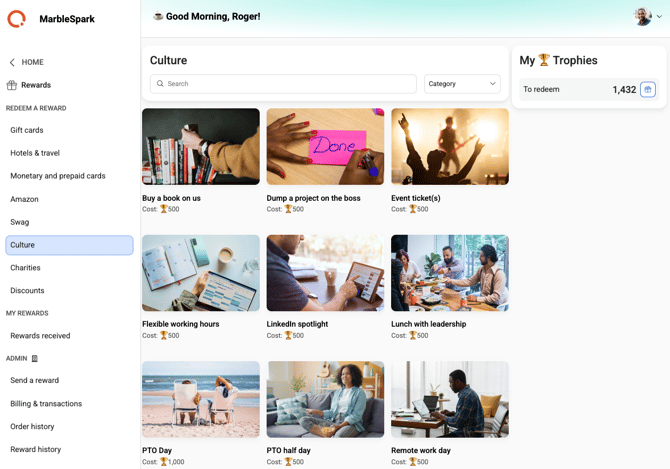
Culture rewards let you create customized rewards of any kind—parking spots, flexible hours, coffee with the CEO, or anything that reflects your company culture. There's no monetary cost to Assembly; you handle fulfillment.
Requirements
- Only admins can set up culture rewards
- When enabled, all employees can redeem
Adding Culture Rewards
- Navigate to your admin page in Assembly here
- Select Rewards > Culture
- Click 'Add reward'
- Enter the reward name, cost (in points), description, category, and location(s)
- Upload an image for the reward
- Optionally, add a related URL for employees to learn more
- Enter the quantity available (leave blank for unlimited)
- Click 'Save'
Setting Locations
If you have employees across multiple work locations, specify which locations can access each reward:
- Set to 'All locations' for organization-wide access
- Select specific location(s) for location-limited rewards
- Rewards only appear to employees in specified locations
Points and Cost
- Culture rewards don't have a monetary cost to Assembly; you cover fulfillment costs
- All rewards must have a point value to be redeemed
- Set points to 0 for free rewards
- You're responsible for all fulfillment and associated costs
Enabling Culture Rewards
- Navigate to your admin page in Assembly here
- Select Rewards > Culture
- Next to 'Show in rewards catalog?', turn the toggle on
- This displays all enabled culture rewards to your employees
Managing Culture Rewards
Edit Rewards
- Find the reward in your inventory
- Click the edit icon
- Update any details you'd like to change
- Click 'Save'
- If quantity is 0, the reward shows as out of stock
- Increase quantity to make it available again
Turn Individual Rewards On/Off
- Navigate to your admin page in Assembly here
- Select Rewards > Culture
- Toggle individual rewards on or off
- Use 'Turn all items ON' or 'OFF' to manage all at once
Disable Culture Rewards Completely
- Navigate to your admin page in Assembly here
- Select Rewards > Culture
- Next to 'Show in rewards catalog?', turn the toggle off
- This hides the catalog from all employees
Fulfillment and Management
[Screenshot: Reward fulfillment table]
Whenever a culture reward is redeemed, it appears in the 'Reward fulfillment' section of your admin page:
- Navigate to your admin page in Assembly here
- Select Rewards > Culture
- Click the 'Reward fulfillment' tab
- Click a redemption ID to open the order details
- Once fulfilled, click 'Mark as fulfilled'
- If you need to cancel, click 'Cancel and refund' (points immediately returned to employee)
How Employees Redeem
- Click Recognition in Quantum Workplace
- Click 'Rewards' in the left navigation in Assembly
- Select 'Culture'
- Select the reward you want
- Follow the steps to choose and submit
- Click 'Redeem'
- Your admin will fulfill the reward and mark it complete
Frequently Asked Questions
Can I set a culture reward to have unlimited quantity?
Yes. Leave the quantity field blank when creating the reward, and it will be unlimited.
What if I need to cancel a redeemed culture reward?
Go to the Reward fulfillment tab, click the order, and click 'Cancel and refund'. Points are immediately returned to the employee's earned balance.