
Last Updated: June 16, 2026
In this article:
- Overview
- Who Can Create Announcements
- Creating an Announcement
- Scheduling Announcements
- Managing Announcements
- Viewing and Marking Announcements as Seen
Note: As Assembly features are being incorporated into Quantum Workplace, some users may see a slightly different experience than what is described in this article. The content below reflects the Quantum Workplace Rewards & Recognition platform experience.
Overview
Announcements let you share important updates with your organization. Admins control who can post and how long announcements stay visible. Track who has seen your announcements with built-in insights.
Who Can Create Announcements
- Admins always have permission
- Admins can grant permission to managers, custom groups, departments, or specific people
- Anyone with permission can create, edit, and manage announcements
Check out a live walkthrough here!
Creating an Announcement
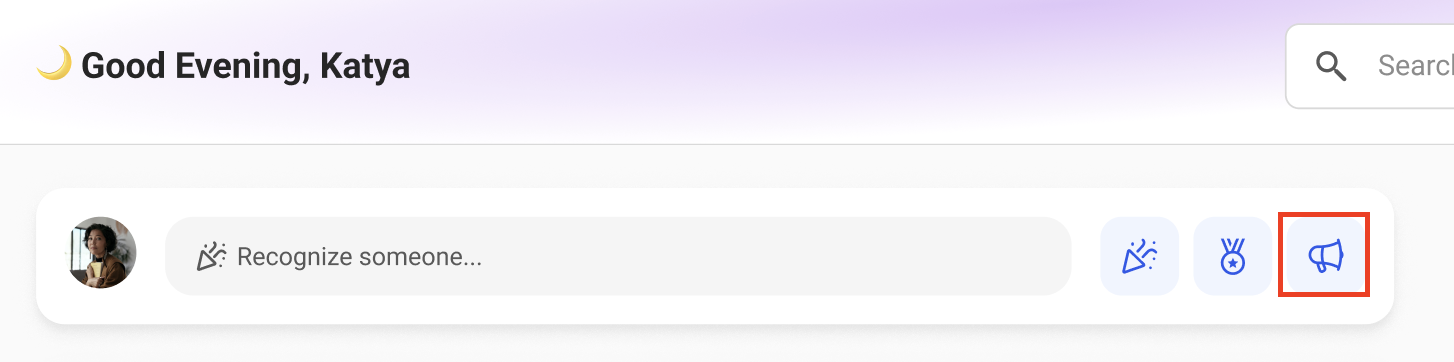
- Click Recognition
- Click 'Create announcement'
- Enter a title for your announcement
- Enter your announcement message
- Select or upload an image
- Choose if you want to allow replies and/or reactions
- Decide to post now or schedule for later
- Set the announcement duration (when it automatically ends)
- Choose who to share with ('Everyone' by default; can select specific groups)
- Review all details
- Click 'Post' (immediate) or 'Schedule post' (scheduled)
Scheduling Announcements
- Select 'Schedule for later' when creating
- Choose the date and time for the announcement to publish
- The announcement will post automatically at that time
- Set a duration for how long it stays active
- Select 'No end date' to keep it active indefinitely
Managing Announcements
End an Announcement
Announcements automatically end after the set duration, but you can manually end them:
- Go to the announcement card in the Announcements section or the post in your feed
- Click the 3-dotted menu
- Click 'End announcement'
- The announcement moves out of the Announcements section but remains in your feed
Edit an Announcement
Only the creator can edit.
For posted announcements:
- Go to the announcement post
- Click the 3-dotted menu
- Click 'Edit'
- Adjust title, message, image, duration, etc.
- Click 'Save'
- If extending duration, the new end date applies
For scheduled announcements:
- Click the '# Scheduled' button in the Announcements section
- Select the announcement and click 'Edit or delete'
- Click 'Post now' to publish immediately, or change the scheduled date
- Click 'Delete' to cancel the scheduled post
Delete an Announcement
Admins and the creator can delete.
- Go to the announcement post
- Click the 3-dotted menu
- Click 'Delete'
- Confirmation required
- Deleted announcements are gone from the Announcements section and feed forever
Viewing and Marking Announcements as Seen
Where Announcements Appear
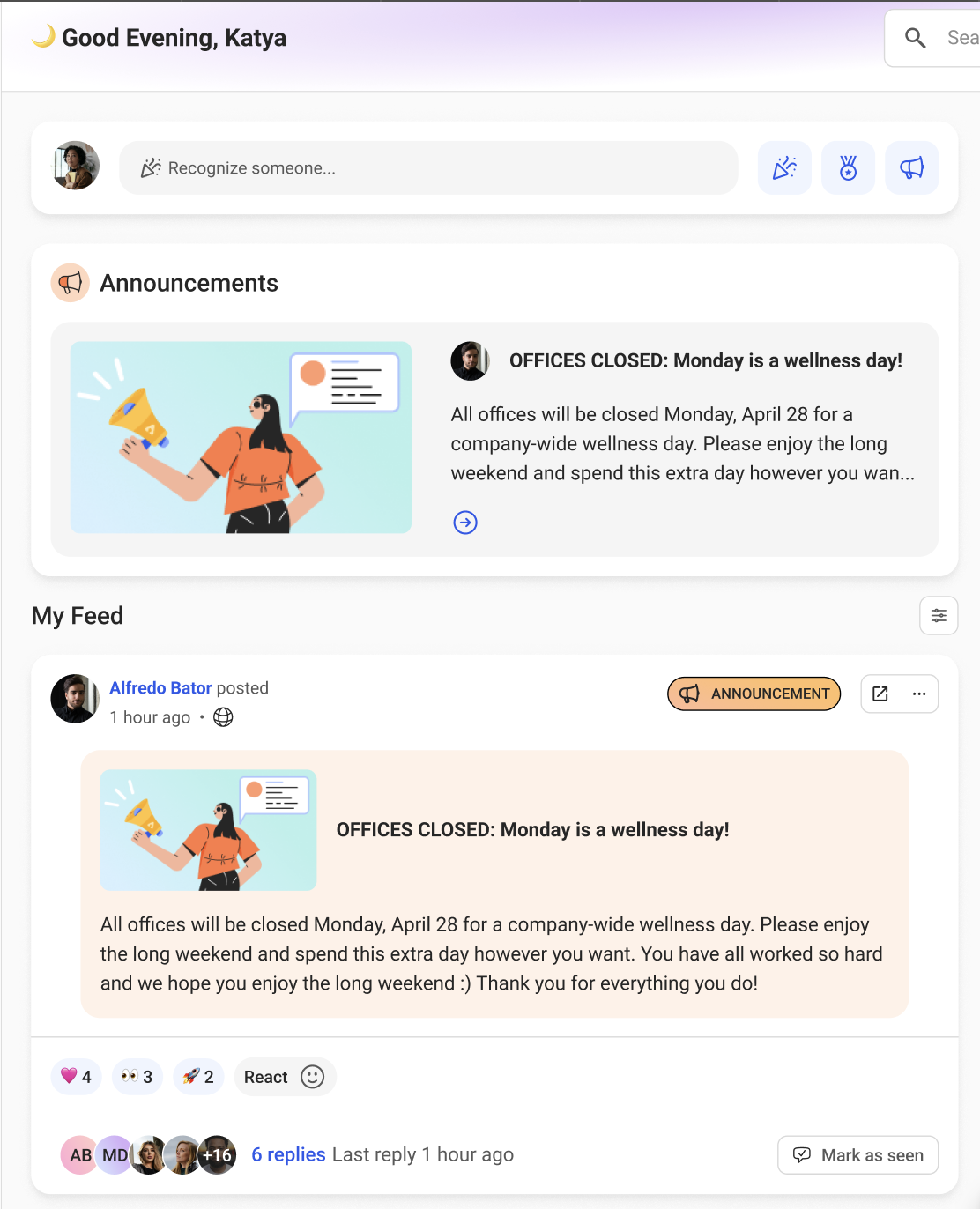
- Active announcements appear in the 'Announcements' section at the top of your home feed
- If no active announcements, this section doesn't appear
- Announcement posts also appear in your regular feed
Mark as Seen
All announcement posts have a 'Mark as seen' button:
- Click it once to mark the announcement as seen
- You cannot mark it as seen again
- Marking as seen doesn't remove it from the Announcements section
- The announcement email also has a 'Mark as seen' button
Announcement Insights
Admins and users with announcement permissions can view who has seen an announcement:
- Go to the announcement post or card
- Click the 3-dotted menu
- Click 'View insights'
- See who has marked it as seen and who hasn't
- Insights remain available even after the announcement ends
Announcement Notifications
When an announcement is posted, recipients get:
- Email notification
- Mobile notification (if using the Assembly app)
- Notification card in Assembly
- DM from the Assembly app in Slack (if connected)
Frequently Asked Questions
Can I schedule an announcement for a specific time of day?
Yes. When you select 'Schedule for later', you can pick an exact date and time.
Can employees reply to announcements?
Only if you enabled replies when creating the announcement. You can disable replies to keep them informational only.
What happens after an announcement ends?
It moves out of the Announcements section but remains in your feed. Employees can no longer mark it as seen, but insights stay available.