
Last Updated: June 16, 2026
In this article:
- Overview
- Begin You Begin
- Connecting Covver to Your Assembly
- Managing Your Swag Catalog
- How Employees Redeem Swag
- Disconnecting Covver
- FAQs
Note: As Assembly features are being incorporated into Quantum Workplace, some users may see a slightly different experience than what is described in this article. The content below reflects the Quantum Workplace Rewards & Recognition platform experience.
Overview
Assembly integrates with Covver to offer swag rewards that your employees can redeem using their points. Covver allows you to create a branded swag catalog where employees select items and manage shipping details. Only admins can set up Covver, and once enabled, all employees can redeem points for available swag items. Note: You can connect to either Covver or Axomo, but not both simultaneously.
Before You Begin
- Only admins can set up Covver swag rewards.
- You must create your Covver account through Assembly to get the required API credentials.
- If you created a Covver account outside of Assembly, the API credentials will not appear in your Covver Dashboard and the connection will fail.
- You can only connect to one swag provider. If you have Axomo enabled, you'll need to disconnect it first.
Connecting Covver to Your Assembly
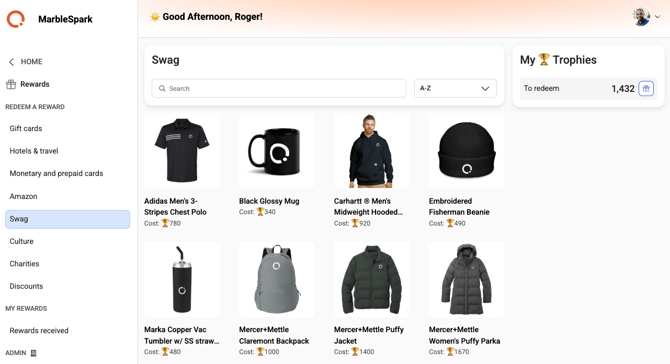
- Click Recognition and Rewards in Quantum Workplace
- Select your profile picture in Assembly
- Click Recognition and Rewards Settings
- Select Rewards > Swag.
- Select Covver.
- Retrieve your Covver CompanyID:
- Log in to your Covver admin panel.
- Go to the API tab.
- Click "Copy CompanyID."
- Retrieve your Covver StoreID:
- From your Covver admin panel, go to the API tab.
- Click "Copy StoreID."
- Paste both credentials into the Assembly connection form.
- Click Connect to Covver.
- All available inventory from your Covver store automatically imports into Assembly, including prices as they appear in your Covver catalog. You can adjust prices in Assembly if desired.
Managing Your Swag Catalog
Item Management
All swag items, images, names, descriptions, and statuses are managed directly in Covver—you cannot edit these in Assembly. Only the following can be adjusted in Assembly:
- Point value: What each item costs employees to redeem.
- Visibility: Whether items appear in the rewards catalog.
Turning On the Swag Tab
By default, the Swag rewards tab is hidden. To show it to your employees:
- Navigate to Assembly admin here.
- Select Rewards > Swag in the left navigation.
- Next to "Show the swag page in the rewards catalog," toggle to On.
Turning Individual Items On or Off
- Navigate to Assembly admin here.
- Select Rewards > Swag in the left navigation.
- Toggle the "Show item" switch next to each item you want to show or hide.
- To quickly manage all items at once, click "Turn all items ON" or "Turn all items OFF."
- Hidden items will not appear in your employees' rewards catalog.
Editing the Point Value of Swag Items
- Click Recognition and Rewards in Quantum Workplace
- Select your profile picture in Assembly
- Click Recognition and Rewards Settings
- Select Rewards > Swag.
- Click the edit icon next to the item whose point value you want to change.
- Enter the new point value.
- Click Save changes.
Important: You are billed for the full price of each item in your Covver catalog, regardless of the point value you set in Assembly. Setting a lower point value is a discount you're offering your employees.
Important: You are billed for the full price of each item in your Covver catalog, regardless of the point value you set in Assembly. Setting a lower point value is a discount you're offering your employees.
How Employees Redeem Swag
- From the Assembly app, navigate to Rewards in the left menu.
- Select the Swag reward type.
- Choose the item you want to redeem.
- Follow the steps to select item details (size, color, etc.) and enter shipping information.
- Click Place order.
Note: Employees cannot combine multiple items in one order. They can only purchase one or multiple quantities of the same item per order.
Using Swag Points
If swag points are enabled in your Assembly, employees can:
- Use swag points alone to redeem items.
- Combine swag points with regular points if they don't have enough swag points.
- Choose to use regular points instead, which overrides swag points by default.
Billing and Shipping
Billing
- All Covver purchases are billed directly to you through Covver—Assembly does not handle billing.
- You are responsible for all purchase and shipping costs.
- Billing is based on the full item price in your Covver catalog, not the point value you set in Assembly.
International Shipping
Not all Covver products ship to all regions:
- In your Covver dashboard's "Customize" tab, each product displays a shipping region tag (specific country, region like EU, or worldwide).
- Items marked as eligible for international shipping will show a country selection option during redemption.
- If an item doesn't ship to a specific country, employees will see only available countries in their shipping details.
Disconnecting Covver
- Click Recognition and Rewards in Quantum Workplace
- Select your profile picture in Assembly
- Click Recognition and Rewards Settings
- Select Rewards > Swag.
- Click Edit connection.
- Click Disconnect Covver.
- Once disconnected, you can reconnect to Covver or switch to Axomo.
Frequently Asked Questions
How do I log in to the Covver Store to manage my account?
- Visit Covver Store.
- Enter your email address in the login bar at the bottom of the page (typically your work email).
- Check your inbox for a verification code. If it doesn't arrive immediately, wait 30 seconds and check your spam folder.
- Enter the verification code and log in.
How do I log out of the Covver Store?
- Visit Covver Store.
- Click "Your Space" at the bottom of the screen.
- Hover over your name and click "Logout."
- If you can't find the logout button, try using a different browser or incognito mode.
How can I track an employee's order?
- Access the Covver Store and click "Your Space" > "My Orders."
- Find the tracking link for the employee's order.
- Note: Packages may be shipped to a local post office or require direct contact from the shipper. Keep an eye on tracking details and stay alert for any phone calls from the shipper.
- Items may arrive in separate shipments if they're sourced from different fulfillment centers.
Can an employee return or exchange items?
Since Covver items are custom-made to order, replacements are not available. Returns are handled on a case-by-case basis. Employees should contact Covver support at support@covver.io with questions.
Are there any countries where Covver items cannot be shipped?
Certain countries have import restrictions or regulations that affect shipping:
- Argentina: Some product categories (apparel, electronics, promotional items, animal products) require an external customs broker. Ensure you have a customs broker ready and contact Covver support at support@covver.io if needed.
- India: Shipping requires that the order address and name match the recipient's ID. International shipments require a KYC form per local customs regulations.
- Ukraine: Shipping times vary, tracking may not be accurate, and no shipping is available to Crimea, Luhansk, or Donetsk regions.