
In this article:
- Overview
- Understanding the Exit Type Demographic
- Add the Engagement Survey Term Flag
- Survey Analytics & Turnover Data
Overview
Turnover is expensive, and understanding what employees were experiencing before they left can help organizations identify opportunities to improve engagement and retention.
By utilizing Exit Type in Survey Analytics, organizations can compare survey responses from employees who remained with the organization to those who later left. Exit Type is automatically calculated using employee information from their User record and the organization's Exit Tracking setting.
Exit Type can help answer questions such as:
- What were employees who eventually left telling us?
- How did engagement differ between employees who stayed and those who left?
- Were employees who left voluntarily experiencing different engagement levels than those who left involuntarily?
Estimate the financial impact of employee turnover.
Understanding the Exit Type Demographic
Exit Type is a standard demographic available in Survey Analytics. Depending on an employee's employment status and exit information, participants can be categorized as:
- Still Employed: The participant does not have a Term Date.
- Voluntary: The participant has a Term Date within the organization's configured Exit Tracking window and their Exit Type is Voluntary.
- Involuntary: The participant has a Term Date within the organization's configured Exit Tracking window and their Exit Type is Involuntary.
- Not Provided: The participant has a Term Date within the configured Exit Tracking window, but no Exit Type is provided.
- Not Applicable: The participant does not have a linked User record.
Exit Type is automatically calculated and is not manually editable through demographic management or bulk import.
How Exit Type Is Calculated
Exit Type is based on the participant's employment information and the individual participant's survey launch date.
The organization's Exit Tracking setting determines how long after a participant's survey launch date an employee's exit can be reflected in the Exit Type demographic.
For example, if Exit Tracking is set to 12 months and an employee leaves nine months after their survey launch date, their Exit Type can be updated to reflect their exit. If the employee leaves after the 12-month window, their Exit Type for that survey does not change.
Exit Type is automatically updated when relevant employee information changes.
Configure Exit Tracking
Administrators can configure the Exit Tracking window from General Settings.
Available options include:
- 3 months
- 6 months
- 9 months
- 12 months
- 18 months
- 24 months
The default setting is 12 months.
Changing the Exit Tracking setting recalculates the Exit Type demographic for participants across the organization's surveys.
Survey Analytics & Turnover Data
Once Exit Type data is available, you can use Exit Type as a filter or slice in Survey Analytics to understand how engagement differs among employees who remained with the organization and those who later left.
Use Exit Type filters and slices to:
- Identify questions and categories with the biggest differences in favorability between employees who remained and employees who left.
- Analyze questions and categories with the highest favorability among employees who left.
- Compare engagement among employees who left voluntarily versus involuntarily.
- Identify potential engagement trends among employees who eventually leave.
All survey data remains aggregated to maintain survey confidentiality; individual survey responses are not visible.
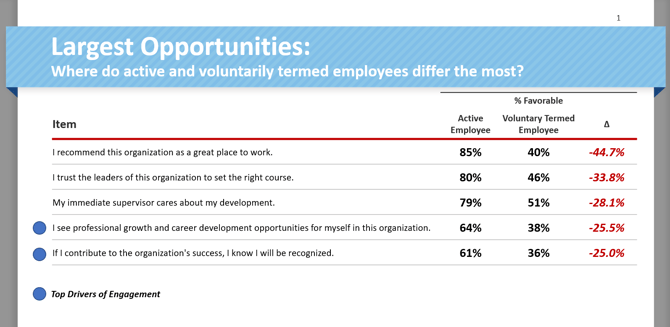
Use Exit Type filters and slices to understand broader insights before diving into the details:
- Identify the questions and categories with the biggest differences in favorability between Still Employed and Voluntary or Involuntary employees.
- Analyze the questions and categories with the highest favorability among employees who left.
- Understanding what employees enjoyed and appreciated about your organization can provide a strong indication of your organization's strengths.
Once you have a broader understanding, use the following methods to dive into more details:
- Filter by Team/Department and Immediate Manager to investigate whether specific teams have higher levels of turnover.
- Filter by Job Function to look into critical roles or roles that are harder to replace with relatively high turnover.
- Filter by Tenure to understand whether employees with a certain tenure show an increased risk of leaving.
- Filter by Exit Type to compare engagement among employees who remain employed, leave voluntarily, or leave involuntarily.