
In this article:
Overview
Budgets help you track how much your organization distributes through recognition and rewards. Create budgets for specific activities or initiatives, such as manager recognition, employee celebrations, or wellness challenges.
Spending is reported in dollars, using the applicable points-to-dollar exchange rate. You can review spending with or without budgets enabled.
Important: Budget caps are spending targets. When a limit is exceeded, it is indicated on the Budgets page, but spending is not capped. Existing feature limits, such as an award’s available points or a challenge’s claim limits, still apply.
A Walkthrough Tutorial of Budgets
Requirements
- Admin access
- Access to the specific feature connected to a given budget
Budget access follows your existing feature permissions. For example, anyone who can create a challenge can also select any budget configured to apply to challenges.
Access Budgets
To access Budgets:
- Navigate to Recognition Administration
- In the admin settings, go to Allowances and Balances and select Budgets.
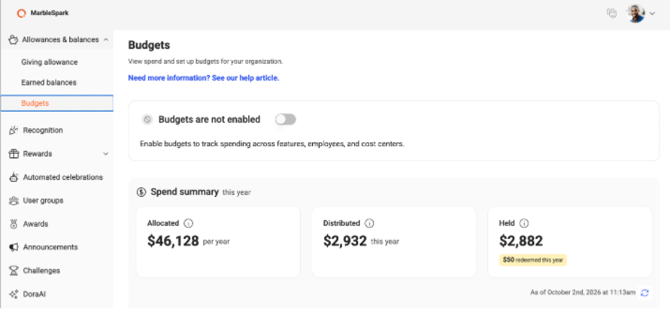
Use this page to review your organization’s spending summary and manage budgets.
Understand Your Spending Summary
Review spending without budgets
Budgets are off by default. You can still review spending without turning them on.
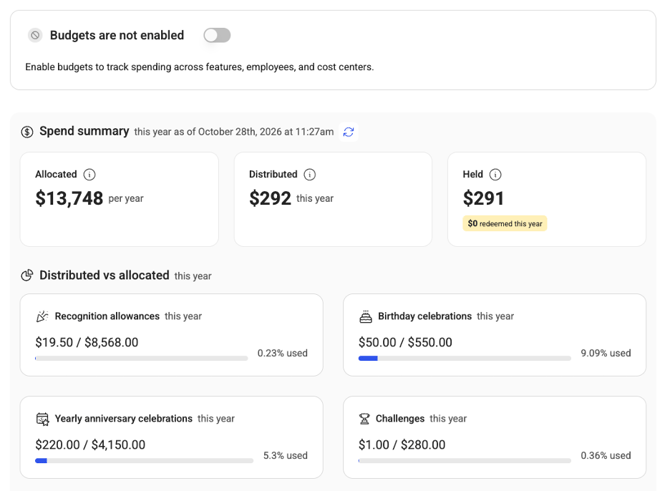
With budgets off, the page groups spending by feature, such as recognition allowances, celebrations, awards, and challenges. Where an allocation is available, you can compare Allocated with Distributed.
Turn budgets on when you want to organize spending into categories, such as Wellness Initiatives or Manager Recognition, and compare spending with optional targets.
Example: From giving allowance to redeemed reward
Let’s take a look at this in practice. In the following example, giving allowances total $100 for the reporting period. Employees start with no unredeemed points, and no other activity occurs.
|
What happens |
Allocated |
Distributed |
Held |
|
Employees have giving allowances worth $100 |
$100 |
$0 |
$0 |
|
Employees give $30 in recognition |
$100 |
$30 |
$30 |
|
Recipients redeem $10 in points for rewards |
$100 |
$30 |
$20 |
Allocated stays at $100 because the allowance settings have not changed. Distributed stays at $30 because redemption does not undo the recognition already given.
Importantly, Allocated and Distributed show amounts for the current calendar year. Held shows employees’ current unredeemed points, including any remaining from previous years.
Redeemed this year shows the dollar value of rewards redeemed during the current calendar year. Because employees may redeem points received in previous years, subtracting Redeemed this year from Distributed will not necessarily equal Held.
Spending reporting is available whether or not budgets are enabled.
The spending summary shows your organization’s recognition and reward activity in dollars, using the applicable points-to-dollar exchange rate.
Each amount answers a different question:
|
Amount |
What it tells you |
|
Planned budget |
What is our spending target? An optional amount you enter when budgets are enabled. |
|
Allocated |
How much is our organization set up to distribute? The total calculated from your activity settings and eligible employees. This amount can be higher than your planned budget. |
|
Distributed |
How much has been issued to employees? The dollar value distributed across supported features, including peer-to-peer recognition, challenges, boosts, and birthday celebrations. Redeeming points does not reduce this amount. |
|
Held |
How much do employees currently have available to redeem? The dollar value of unredeemed points, including points received in previous years. This is separate from your remaining planned budget. |
|
Redeemed |
How much has been redeemed this year? The dollar value of rewards redeemed during the current calendar year, including redemptions using points received in previous years. |
How giving allowances affect these amounts
Giving allowances are points employees can give to others through recognition or boosts. These allowances contribute to Allocated.
When employees give those points to someone else, their dollar value contributes to Distributed. Giving points does not reduce Allocated. Points employees receive remain in Held until redeemed.
Activities without an allocation
Sending rewards, new hire celebrations, and earned balance deposits contribute to Distributed when points or rewards are issued. They do not contribute to Allocated because Assembly cannot calculate their total value in advance.
Why Allocated may differ from your planned budget
Your planned budget is a target you enter. Allocated is calculated from your activity settings. Entering a budget target does not adjust your allowances, awards, challenges, or celebrations to match it.
Allocated can be higher than your target, and employees may not use all available giving allowance points. Budget overages are based on Distributed, rather than Allocated.
Turn On Budgets
To start organizing spending into budgets, turn on the Budgets toggle on the Budgets page.
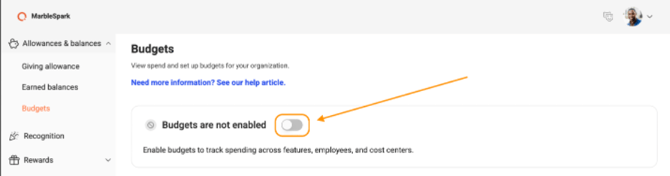
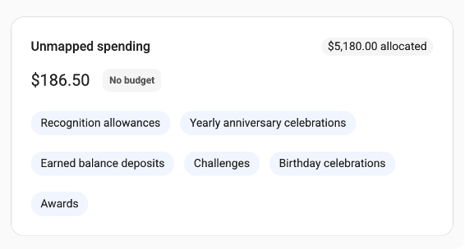
The page changes from a spending breakdown by feature to a budget view. If you have not created any budgets, the page displays an empty state with an option to create your first budget. Any existing allocation or spending appears under Unmapped spending.
- With budgets OFF, the page compares Distributed with Allocated by feature.
- With budgets ON, each budget card compares Distributed with the budget’s target if one is set, and also shows the amount Allocated to that budget.
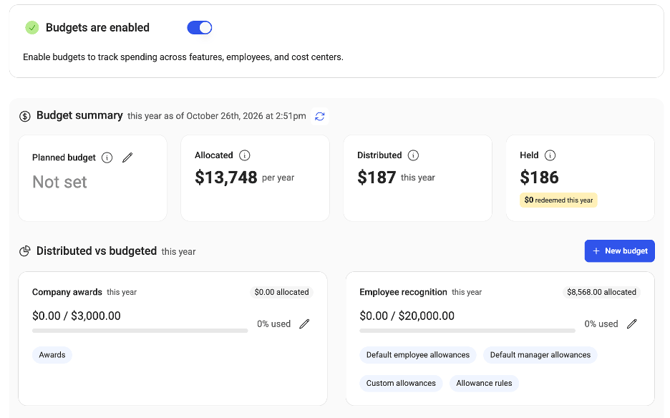
Turning on budgets does not change your existing allowance amounts or recognition and reward settings. Features with Allocated or Distributed amounts that are not connected to a budget appear under Unmapped spending, where you can review the contributing features.
Spending distributed before a budget was selected also remains under Unmapped spending. Connecting a feature to a budget applies to future spending; previously distributed amounts cannot currently be moved into a budget.
Set an organization-wide budget target
To set an overall spending target, select click edit in Planned budget in the summary. Enter the target amount and select a monthly, quarterly, or yearly period.
An organization-wide target is optional. You can also set targets for individual budgets.
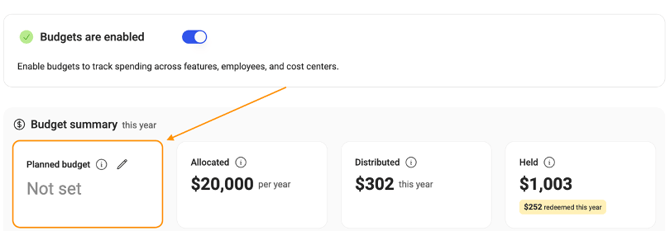 An overall target is optional. You can also set targets for individual budgets.
Create a Budget
To create a budget:
- From the Budgets page, select the option to create a new budget.
- Enter a unique Budget name, such as “Manager Recognition” or “Wellness Initiatives.”
- Optionally, enter a Planned budget amount to set a spending target.
- If you enter a budget amount, select a monthly, quarterly, or yearly Period.
- Select the features that can use this budget, AKA what will be “Funded by” this amount.
- Save the budget.
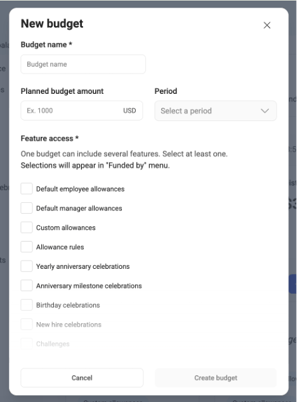
Leave the Planned budget amount if you want to track spending without a target. Budgets without a planned amount report their distributed amount without a percentage used.
A newly created custom budget starts without connected activities. Select it in the relevant activity’s settings to begin tracking spending against it.
Connect Features to a Budget
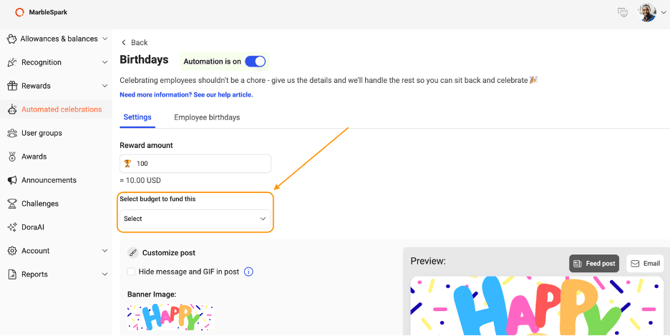
When budgets are enabled, supported feature settings will include a Funded by field. Use this field to select which budget tracks the feature’s spending.
Funded by determines which budget tracks a specific activity.
Only budgets with the relevant feature selected under Applies to appear as options.
|
Activity |
Where to select the budget |
|
Employee or manager default giving allowances |
In the corresponding default allowance settings. |
|
Custom giving allowances |
When configuring an individual’s custom allowance. |
|
Allowance rules |
In the settings for each allowance rule. |
|
Awards and challenges |
In the settings for each award or challenge. |
|
Birthday, anniversary, and new hire celebrations |
In the corresponding celebration settings. |
|
Sending rewards |
When sending the reward. |
|
Earned balance deposits and removals |
When adding or removing earned balance points. |
For example, create a “Wellness Initiatives” budget and select Challenges and Awards under Applies to. Then, select “Wellness Initiatives” in the Funded by field for each wellness challenge or award you want to include.
More than one budget can apply to the same feature, but each activity uses one selected budget. Its spending is counted once within that budget.
For example, “Wellness Initiatives” and “Holiday Incentives” can both have Challenges, Awards, and Send Rewards selected under Applies to. When configuring a challenge or award, or sending a reward, select the appropriate budget in Funded by. Spending from that activity appears only under the selected budget.
Unmapped spending
Selecting a budget is optional. If no budget is selected, the activity’s spending appears under Unmapped spending and remains included in your organization’s overall spending totals.
For example, a “Company Awards” budget has Awards selected under Applies to. You create two awards and select “Company Awards” under Funded by for Award A, but leave Award B without a budget. Spending from Award A appears under Company Awards. Spending from Award B appears under Unmapped spending.
Leaving Funded by unselected does not prevent the activity from running. Any allocated or distributed amounts appear under Unmapped spending. If you connect the feature to a budget later, only future spending is tracked under that budget. Previously distributed amounts remain under Unmapped spending and cannot currently be moved into a budget.
Manage Your Budgets
Edit a budget to update its name, spending cap, period, or add eligible features. Adding a feature makes the budget available in that feature’s Funded by field; you still need to select it in the relevant settings.
Change an activity’s budget
To change which budget tracks an activity, update its Funded by selection in the activity’s settings.
The change applies to future spending. Amounts already distributed remain recorded against the budget selected at the time they were issued.
For example, if an award distributed $500 through “Employee Recognition” before you switch it to “Wellness Initiatives,” the original $500 distributed remains under Employee Recognition. Future award spending is recorded under Wellness Initiatives.
Delete a budget
When deleting a budget, review the affected activities and choose whether to move them to another eligible budget or leave them unmapped.
Deleting a budget does not stop those activities. A deleted budget remains available as read-only in reporting for periods when it had spending, so previously distributed amounts remain visible.
Turn off budgets
Turn off the Budgets toggle to return to the spending breakdown by feature. Turning budgets off does not interrupt recognition, rewards, or other activities; it changes how spending is displayed.
Your budgets and their connections are retained, and historical spending keeps its original budget attribution. Turning budgets back on restores your previous setup.
FAQs
Does setting a budget add money to our rewards wallet?
No. Budgets help you organize spending and compare it with a target. Setting a budget does not add funds to your rewards wallet or change its balance.
Your rewards wallet holds the funds used to pay for reward redemptions. Budgets track the value distributed to employees through recognition and rewards.
What happens when a budget exceeds its target?
The Budgets page visually indicates when Distributed exceeds the budget target. Exceeding a budget target does not block any features from using that budget going forward. Recognition and rewards continue, subject to their existing feature limits.
Do employees redeeming points reduce budget spending?
No. Redemption reduces Held, which represents unredeemed points. Distributed continues to reflect the value already issued.
Why did my allocated amount change?
Allocated reflects your current activity settings and eligible employees. Changes to allowance amounts, awards, challenges, celebrations, or employee eligibility can change this amount. Adding or removing employees automatically adjusts Allocated when those employees are eligible for activities with a calculated allocation.
Can I limit a budget to specific people?
Budget selection follows your existing feature permissions. Anyone who can configure a feature or perform an activity can select from the budgets that apply to it.
For example, admins select budgets when configuring giving allowances and automated celebrations, sending rewards, or adding or removing earned balance points. Anyone with permission to create or manage awards and challenges can select from the budgets that apply to those features.
How do earned balance corrections affect spending?
Removing unredeemed points reduces Distributed and Held. The correction is recorded in the period when the removal occurs and against the budget selected for that removal, or under Unmapped spending if no budget is selected. It does not rewrite an earlier period’s spending.