
In this article:
Overview
Use Bookmarks to highlight thoughts, details, or context for specific survey questions when viewing survey results. Comments can be added to existing Bookmarks for additional context or detail.
For example, if you notice a significant disparity in how different departments responded to a survey question, you can apply the department slice to the question and create a bookmark to call the issue to a colleague's attention.
Bookmarks for a survey can be added to a survey's Action Plan as Focus Areas.
Additional Resources:
Requirements
- Available to all users with access to a survey's analytics
Create Bookmarks
As a user with visibility into a survey's analytics, create Bookmarks to add meaningful context to a survey item's results or make note of a particular result to call out for additional analysis.
To create a bookmark:
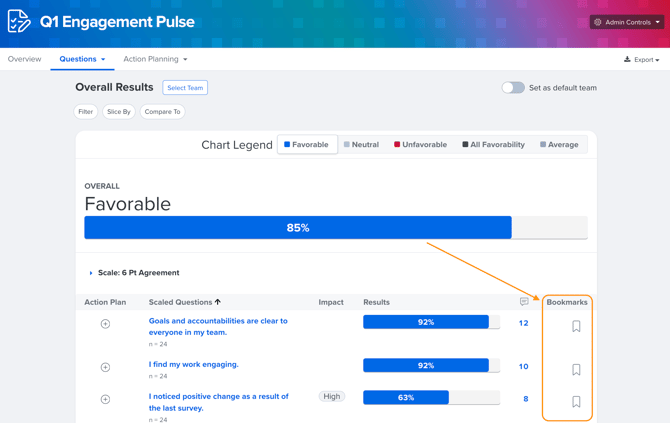
- Click the Bookmarks ribbon icon for the corresponding survey item
- In the sidebar, enter a description for the bookmark
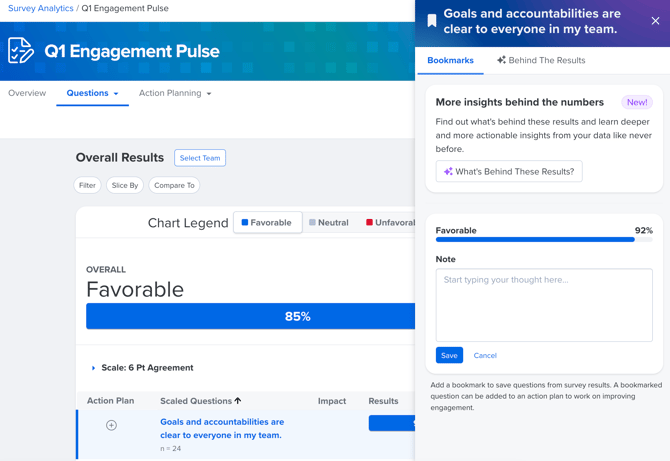
- Click Save
View Bookmarks
Bookmarks are used to collaboratively identify and discuss areas of opportunity when reviewing survey results.
When viewing a survey's analytics, if a team view is active, all Bookmarks created by users within the team are visible to others with visibility into the team.
Bookmarks created with a slice, filter, or comparison are only visible to other users with access to the demographics. For example, if a bookmark was created with an Age demographic, only users with access to the Age demographic can view the bookmark. Learn more about survey access settings and reporting access.
- Admins & Survey Admins: can view all Bookmarks, regardless of the bookmark creator
- Bookmark Creators: can view Bookmarks they created
- Managers: can view Bookmarks created by anyone in their downline according to their position in the manager hierarchy
- Managers cannot see Bookmarks created by upline managers or admins unless the bookmark is created on the manager's team or a downline team
- All Users: all other users can view Bookmarks created by others within their team
Custom Org Trees display Bookmarks for teams. These Bookmarks are accessible by those assigned to the team, in addition to admins and All Respondent assignments to streamline automated Bookmarks and deliver actionable, focused bookmark.
View Manual Bookmarks
Users can create a bookmark on any team, with any demographic as long as they're granted access to the demographic in question.
Users can always see manual Bookmarks that they've created, regardless of which team they have selected. Users can also see manual Bookmarks created by others in different teams as long as the selected team is in the user's own downline.
Visibility Limitations
- If a slice, filter, or comparison is applied, the user can only see relevant Bookmarks if they also have access to the demographic attribute
- Users with limited upline access cannot see Bookmarks manually created by others in an upline team.
View Automated Bookmarks
To view automated Bookmarks, use the Select a Team button in the survey's analytics to select the appropriate team. Bookmarks for demographics may or may not be shown depending user's access to a demographic.
Manage Bookmarks
Users can edit or delete Bookmarks they've created, as well as view the survey item in the Results report.
To manage a bookmark you've created:

- A. Click the⋮ icon to expand the menu with:
- Edit: Update the description text for the bookmark
- Delete: Delete the bookmark
- B. bookmark Details/View bookmark: Click to navigate to view the survey item in the Results report
- If any slices/filters were enabled when the bookmark was created, those same slices/filters are enabled when viewing the bookmark
The bookmark may look slightly different depending on whether you're viewing a bookmark in the Action Planning tab for an Engagement survey's analytics, or in the Bookmarks tab for any other kind of survey. The functionality works the same way.
One HR platform for connected talent Bookmarks. See how Quantum Workplace brings your data together across 1-on-1s, talent reviews, performance reviews, and more—so you can spot trends, act fast, and make more informed people decisions. Explore the interactive product tour or request a personalized demo with your Customer Success Manager.