
Last Updated: June 16, 2026
In this article:
- Overview
- New Hire Celebrations
- Birthday Celebrations
- Work Anniversary Celebrations
- Post Settings
- Viewing Message History
- FAQs
Note: As Assembly features are being incorporated into Quantum Workplace, some users may see a slightly different experience than what is described in this article. The content below reflects the Quantum Workplace Rewards & Recognition platform experience.
Overview
Assembly's automated celebrations feature lets you recognize key milestones in your employees' journeys—birthdays, work anniversaries, and new hire welcomes—automatically.
When enabled, your team receives personalized celebration posts in the feed and via email, with optional point rewards to make each occasion extra special. As an admin, you can customize messaging, timing, images, GIFs, and visibility settings for each celebration type to match your company culture.
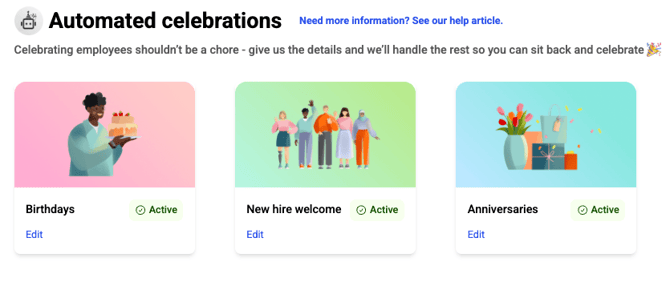
New Hire Celebrations
Welcome new employees with an automated message on their first day. Only admins can set up and manage new hire welcome celebrations.
How New Hire Celebrations Work
- The new employee must be active in Assembly to receive the welcome message
- The new employee must have a start date associated with their profile at the time of activation in Assembly
- If activated within 14 days after their start date, they will receive the message
- If activated more than 14 days after their start date, they will not receive the message
- If activated before their start date, they receive the message on their designated start date
- The welcome message sends at 8:00 AM in the employee's designated time zone (or your Assembly time zone if not set)
- New employees are notified via email and in-app notifications
- The message appears as a post in the home feed
How to Customize New Hire Messages
-
Navigate to your admin page in Assembly here
- Click Automated celebrations in the left navigation menu
- Select New hire welcome
Set Points Value
- Select reward type: regular points, swag points, both, or no points
- Points are automatically deposited in the new employee's earned balance when the message posts
- If your recognition settings hide points from posts, the value is only visible to the recipient and admins
Customize Post Image
- Choose from default images or upload your own
- Click Choose image from library to browse default options
- Click Upload your own in the Banner image section for custom images
Customize Post Message
Write a personalized message using dynamic variables:
- Employee first name — new employee's first name
- Employee full name — new employee's full name
- Reward amount — total points and currency (e.g., "10 Carrots") Note: Do not use if points are hidden or if reward is 0
- Company name — your company name as shown in Assembly
- Manager full name — new employee's manager's name
Select GIF(s)
- Enable the Display GIF toggle to include GIFs with the message
- Select up to 10 GIFs; they rotate for each new employee's post
- Toggle off if you don't want to include GIFs
Customize Email Sender
- Set the name the message appears to come from (email only)
Hide Message + GIF in Post
- Choose to hide the message and GIF in your feed posts for a more concise appearance
- The message and GIF still appear in the email sent to the recipient
Deactivating New Hire Celebrations
Toggle OFF the automation at the top of the page to pause without losing your settings. New employees will not receive messages until you re-enable it.
Birthday Celebrations
Celebrate employee birthdays with automated messages. Only admins can set up and manage automated birthday celebrations.
How Birthday Celebrations Work
- The employee must have their birthday date added to their profile
- The birthday message sends at 9:00 AM in your designated time zone (applies to all employees regardless of their individual time zones)
- If an employee's birthday falls on a weekend, you can choose to send the message on Friday before or Monday after
- Employees and their direct managers are notified via email and in-app notifications
- The message appears as a post in the home feed
How to Customize Birthday Messages 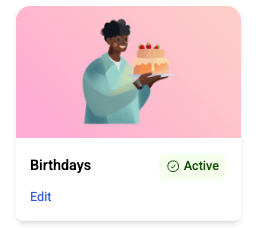
-
Navigate to your admin page in Assembly here
- Click Automated celebrations in the left navigation menu
- Select Birthdays
Set Points Value
- Choose how many points to give on birthdays
- Enter 0 if you don't want a reward (no points reference will appear)
- Points are automatically deposited in the earned balance when the message posts
- If recognition settings hide points, the value is only visible to the recipient and admins
Customize Post Image, Message, and GIFs
Follow the same steps as new hire celebrations (image selection, dynamic variables, GIF options, email sender customization).
Message Schedule
- Choose the time of day and time zone for birthday posts to send
- All birthday posts for that day send at the same time
- If a birthday falls on a weekend, choose Friday before or Monday after
Deactivating Birthday Celebrations
Toggle OFF at the top of the page to pause without losing settings.
Work Anniversary Celebrations
Recognize work anniversaries with automated messages. Celebrate yearly anniversaries, major milestones, or both. Only admins can set up and manage anniversary celebrations.
How Work Anniversary Celebrations Work
- The employee must have a start date on their profile
- The anniversary message sends at 9:00 AM in your designated time zone
- If an anniversary falls on a weekend, you can choose to send on Friday before or Monday after
- Employees and their direct managers are notified via email and in-app notifications
- The message appears as a post in the home feed
How to Customize Anniversary Messages 
-
Navigate to your admin page in Assembly here
- Click Automated celebrations in the left navigation menu
- Select Anniversaries
Year Over Year Celebrations
Celebrate every work anniversary with optional points increases:
- Enable the Year over year toggle
- Set the base points value for the first anniversary
- Set a yearly increase amount (points added for each additional year)
- Example: Base = 100, Increase = 10 → Year 1: 100 points, Year 2: 110 points, Year 3: 120 points
- Set increase to 0 to keep the same points every year
- Message still sends even if points are 0
Major Anniversary Milestones
Celebrate specific work anniversaries with special point values:
- Enable the Major anniversary milestones toggle
- Set the anniversaries you want to celebrate (e.g., 1, 5, 10, 15 year)
- Set the point value for each milestone
- Milestone values override year-over-year values when both are enabled
- Example configuration with both enabled:
- Base = 100, Increase = 10, Milestones: Year 1 = 100, Year 5 = 500, Year 10 = 1,000
- Result: Year 1: 100, Year 2: 110, Year 3: 120, Year 4: 130, Year 5: 500, Year 6: 150, Year 7: 160, Year 8: 170, Year 9: 180, Year 10: 1,000
Customize Post Image, Message, and GIFs
Follow the same steps as new hire and birthday celebrations. Dynamic variables for anniversaries include:
- Employee first name — employee's first name
- Employee full name — employee's full name
- Anniversary reward — total points and currency Note: Do not use if points are hidden or if reward is 0
- Company name — your company name
- Years of employment — number of years (e.g., "2 year", "1 year")
Message Schedule
- Choose the time of day and time zone for anniversary posts
- If an anniversary falls on a weekend, choose Friday before or Monday after
Deactivating Anniversary Celebrations
Toggle OFF at the top of the page to pause without losing settings.
Post Settings
Allow Others to Boost the Post
Choose whether employees can boost their replies with extra points:
- Select yes to let employees boost replies
- Select no to disable boosting
- This setting is independent of your global recognition settings for boosting
Post Visibility
- Everyone — all employees see the post in the feed
- Private — only the recipient and admins see the post in the feed
Viewing Message History
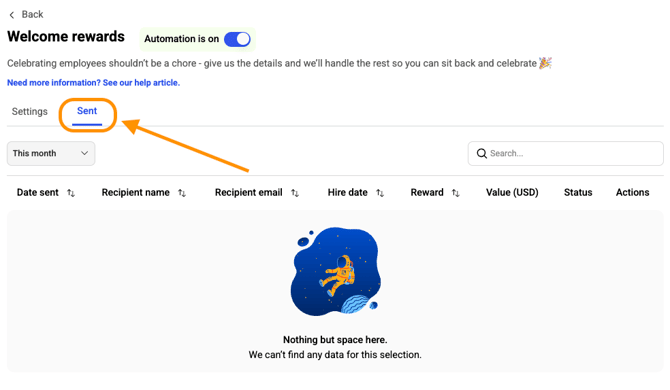
Track sent and upcoming messages from the Sent tab (for new hire celebrations) or the dedicated tabs for birthdays and anniversaries.
For New Hire Celebrations
- By default, shows all messages sent this month
- Filter by any previous month within the past 12 months
- Messages show Sent, Not sent, or Pending status
- Click Resend to resend a message that failed
- If a reward contains swag points, hover over the tooltip to see the breakdown
For Birthday and Work Anniversary Celebrations
- By default, shows all celebrations for the current month
- Filter by any month within the previous 12 months
- Upcoming celebrations within the next 30 days show Upcoming status
- Past celebrations show Sent status if successful, Not sent if failed
- Click Resend to resend a failed message
- Use the Employees missing start date filter to quickly identify employees without start dates
- Click Add start date to quickly update an employee's profile
FAQs
What if an employee doesn't have a start date or birthday on their profile?
Automated celebrations require the relevant date (start date for new hire/anniversary, birthday for birthday celebrations) to be set on the employee's profile. Messages will not send without these dates. You can bulk-add dates or update them individually in employee profiles.
Can I customize when messages send?
Yes. New hire messages send at 8:00 AM in the employee's time zone. Birthday and anniversary messages send at 9:00 AM in your designated time zone. You can also choose to reschedule weekend celebrations to the Friday before or Monday after.
What happens if an employee is activated in Assembly after their start date?
For new hire celebrations, if they're activated within 14 days after their start date, they still receive the message. If activated more than 14 days after their start date, they will not receive it.
Can I give points but hide the point value?
Yes, but only if your recognition settings allow points to be hidden from posts. In that case, point values appear only to the recipient and admins. Avoid using the "Reward amount" dynamic variable if points are hidden, as it will still display the value.